
When you create your account in Cookie Information, you can start with a ready-to-use consent popup.
This article shows what the default popup looks like, how it behaves, and which settings you can customize.
What the default consent popup looks like
The consent popup uses the Overlay v2 – Google Consent Mode v2 template by default. You can also choose Overlay v3 – Google Consent Mode v2. Both templates support customization.
The Overlay v2 – Google Consent Mode v2 popup before any text or design customizations:
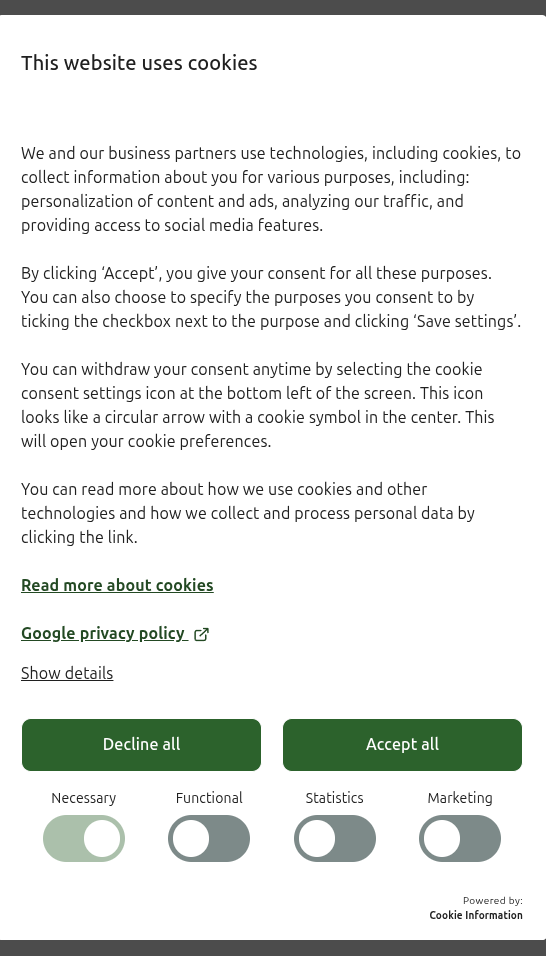
How the default consent popup works
The consent popup appears for all visitors who need to make a consent choice. The popup isn’t limited to a specific country or region.
Consent expiration
After a visitor makes a consent choice, the popup won’t appear again until that choice expires.
If they accept all cookies, their consent is valid for 12 months. If visitors decline one or more cookie categories, their consent will be valid for 14 days.
After that period, the consent popup appears again.
Google consent mode v2
Google Consent Mode v2 is enabled by default through the data-gcm-version="2.0" attribute in the installation script.
Cookie Information supports basic and advanced consent mode.
With basic consent mode, Google doesn’t collect user data or consent status before the visitor agrees. With advanced consent mode, Google tags can load before consent and send cookieless data without personal identifiers.
Consent widget
After a visitor makes a consent choice, the popup closes and a consent widget appears in the lower-left corner of the page.
Visitors can use the widget to reopen the popup and change or withdraw their consent. You can turn off the widget or use another button or link instead.
What happens after a visitor makes a choice
After a visitor accepts, declines, or saves their preferences, the popup closes.
The consent widget remains available in the lower-left corner so visitors can reopen the popup and change their preferences later.
Default popup content
The default consent popup includes predefined text for each supported language and up to four consent categories. You can customize the text, while the categories shown depend on the cookies and tags detected on your website.
Popup language
Cookie Information provides predefined popup text in each supported language.
The data-culture attribute in the installation script determines which version appears on your website. The value must match a language set up for the consent solution.
You can change the popup text, category names, and descriptions in Copy and translations. Category names and descriptions are language-specific, so changes made in one language don’t automatically apply to others.
Consent categories
The consent popup can contain four categories:
| Category | Default behavior |
|---|---|
| Necessary | Always shown and enabled. Visitors can’t turn it off. |
| Functional | Appears when applicable. |
| Statistical | Appears when applicable. |
| Marketing | Appears when applicable. |
The Necessary category is always available because these cookies are required for the website to provide basic services.
Cookie Information automatically hides an optional consent category when it hasn’t detected cookies or tags assigned to that category. For example, if no marketing cookies are detected, the Marketing category and its switch won’t appear. If your website only uses necessary cookies, only the Necessary category appears.
Switches for optional categories are off until the visitor chooses to enable them.
Default popup layout
The Overlay v2 template appears as a centered modal with a darkened page background. You can customize the popup background and overlay separately.
The design uses a light background, dark text, and a contrasting color for primary actions and active consent switches.
Buttons
On the first layer, visitors can select Accept all or Decline all, or use the consent switches to choose categories individually.
Accept all enables all available consent categories.
Decline all rejects them while keeping Necessary enabled.
When a visitor changes an individual consent switch, Decline all changes to Save settings so they can save their preferences.
Styling
The consent popup uses a white background, dark text, and green for primary buttons and active switches.
You can customize these elements in the visual editor:
- Colors: Change the colors of the popup, buttons, text, and consent switches.
- Background: The popup appears over a darkened page by default. You can change the overlay color or turn it off.
- Logo: No logo appears on the first layer initially. You can add your company logo.
Customize the default consent popup
You can use the visual editor to customize Overlay v2 and Overlay v3, including their typography, buttons, consent switches, popup background, and overlay.
Changing to another template can reset some text or styling customizations. We recommend using the latest template version.


