
A Cookie Information tag lets you integrate Cookie Information and Piwik PRO. The tag maps cookie categories from Cookie Information with consent types in Piwik PRO. This lets you trigger tags based on consents collected through the Cookie Information consent popup. It helps you monitor and optimize your consent rates.
In this article, we’ll show you how to set up the tag and integrate Cookie Information with Piwik PRO.
Before you start
Here are a few things to know before you start
- You need an account in Piwik PRO and Cookie Information.
- urn off shared consent in Cookie Information to enable consent syncing. This feature sets third-party cookies, which Piwik PRO doesn’t support.
- You need Cookie Information and Piwik PRO codes installed on your website:
- To install Cookie Information, follow these guides:
- To install Piwik PRO code on your website, follow the guide that fits your tools:
- Install a container (with a tracking code)
- Angular: install a container (with a tracking code)
- Drupal: install a container (with a tracking code)
- Google Tag Manager: install a container (with a tracking code)
- Google Tag Manager: install a tracking code on its own
- Install a first-party collector (server-side)
- Instapage: install a container (with a tracking code
- Next.js: install a container (with a tracking code)
- No Piwik PRO Tag Manager: install a tracking code
- React: install a container (with a tracking code)
- Squarespace: install a container (with a tracking code)
- Wix: install a container (with a tracking code)
- WooCommerce: install a container (with a tracking code)
- WordPress: install a container (with a tracking code)
- To install Piwik PRO code in your mobile app, follow a dedicated guide:
- Read about the benefits of integrating Cookie Information with Piwik PRO in this blog post.
- To integrate Cookie Information with Piwik PRO, you’ll need to use Piwik PRO Tag Manager as well.
- A Cookie Information banner automatically includes details about cookies used by Piwik PRO. No manual addition is necessary. Keep in mind that the cookie details will appear once the cookie scanner completes its task. If you don’t see them immediately, it means the scanner is still at work.
Install the Cookie Information consent popup script
Note: If you already have Cookie Information consent popup script in place, you can move to the section Adjust the settings in Piwik PRO.
To install the Cookie Information consent popup script, follow these steps:
1. Add the following script for the consent popup to your website’s <head> tag in the HTML code:
<script id="CookieConsent" src="https://policy.app.cookieinformation.com/uc.js" data-culture="EN" data-gcm-version="2.0" type="text/javascript"></script>Note:
- The data-culture = “EN” attribute controls the language in which the popup will appear on the site. This example will be displayed in English. Set the data-culture attribute to a different language code to change the language. Make sure that the languages set in the script’s data-culture attribute match the languages set up in the platform.
- If you prefer another installation method, follow one of our guides here.
- To avoid issues, don’t modify the consent popup script except for the
data-cultureattribute. - In some cases, mismatched
data-culturecodes between the script and platform settings may cause consent banners to not display. Ensure that the language code in thedata-cultureattribute matches the language configured in Cookie Information. For further steps on fixing language settings, refer to our troubleshooting guide.
2. Use the language code from the table below to set the data-culture attribute to your desired language.
Language codes
| Data culture | Language | Data culture | Language |
|---|---|---|---|
| AR | Arabic | LT | Lithuanian |
| BG | Bulgarian | LV | Latvian |
| CA | Catalan, Valencian | MS | Malay |
| CS | Czech | NB | Norwegian Bokmål |
| DA | Danish | NN | Norwegian Nynorsk |
| DE | German | NO | Norwegian |
| EL | Modern Greek | NL | Dutch, Flemish |
| EN | English | PL | Polish |
| ES | Spanish, Castilian | PT | Portuguese |
| ET | Estonian | RO | Romanian |
| FI | Finnish | RU | Russian |
| FR | French | SK | Slovak |
| HE | Modern Hebrew | SL | Slovene |
| HI | Hindi | SQ | Albanian |
| HR | Croatian | SR | Serbian |
| HU | Hungarian | SV | Swedish |
| ID | Indonesian | TH | Thai |
| IS | Icelandic | TR | Turkish |
| IT | Italian | TW | Taiwanese |
| JA | Japanese | UK | Ukrainian |
| KO | Korean | VI | Vietnamese |
| KL | Greenlandic | ZH | Chinese |
Note: If some banners display incorrect or customized text for specific languages like Norwegian Bokmål (NB), you can reset the text to the template’s default. In Consent solutions, find the consent solution where you want reset the text.
If you have made changes only to the cookie policy, go to Consent popup > Copy and translations > Edit copy > Cookie policy, and click Reset to default.
If you have made changes only to the consent popup, go to Consent popup > Copy and translations > Edit copy > Pop-up, and click Reset to default.
3. Done.
Adjust the settings in Piwik PRO
Here are the key settings you need to adjust in Piwik PRO:
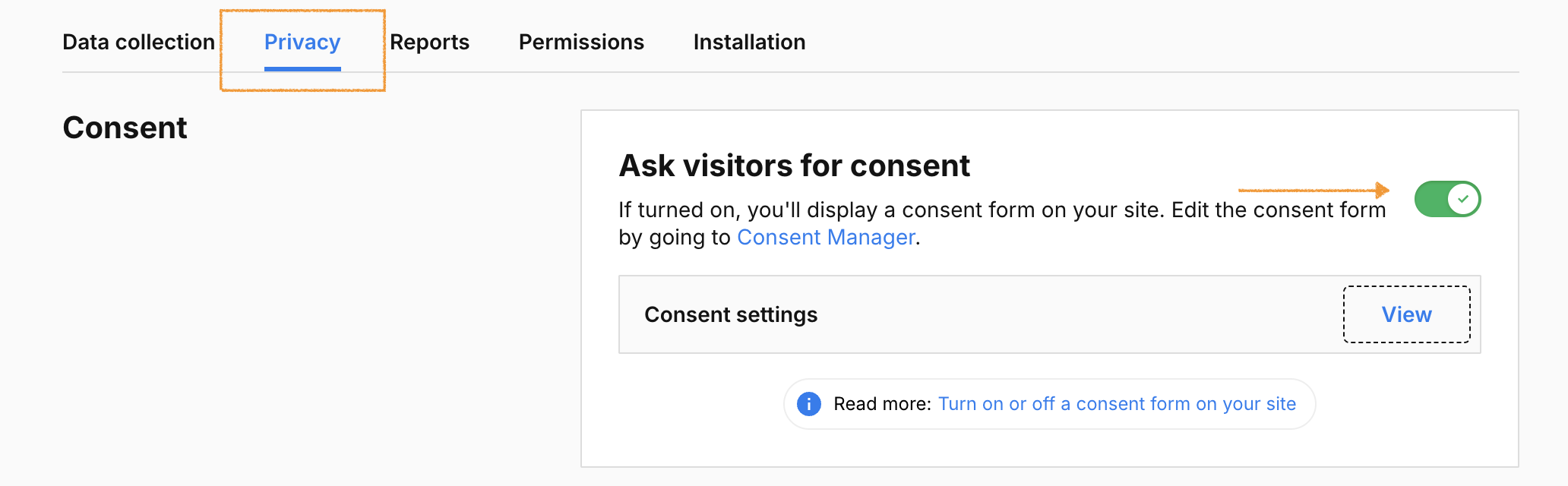
1. Turn on: Administration > Sites & apps > Privacy > Ask visitors for consent.
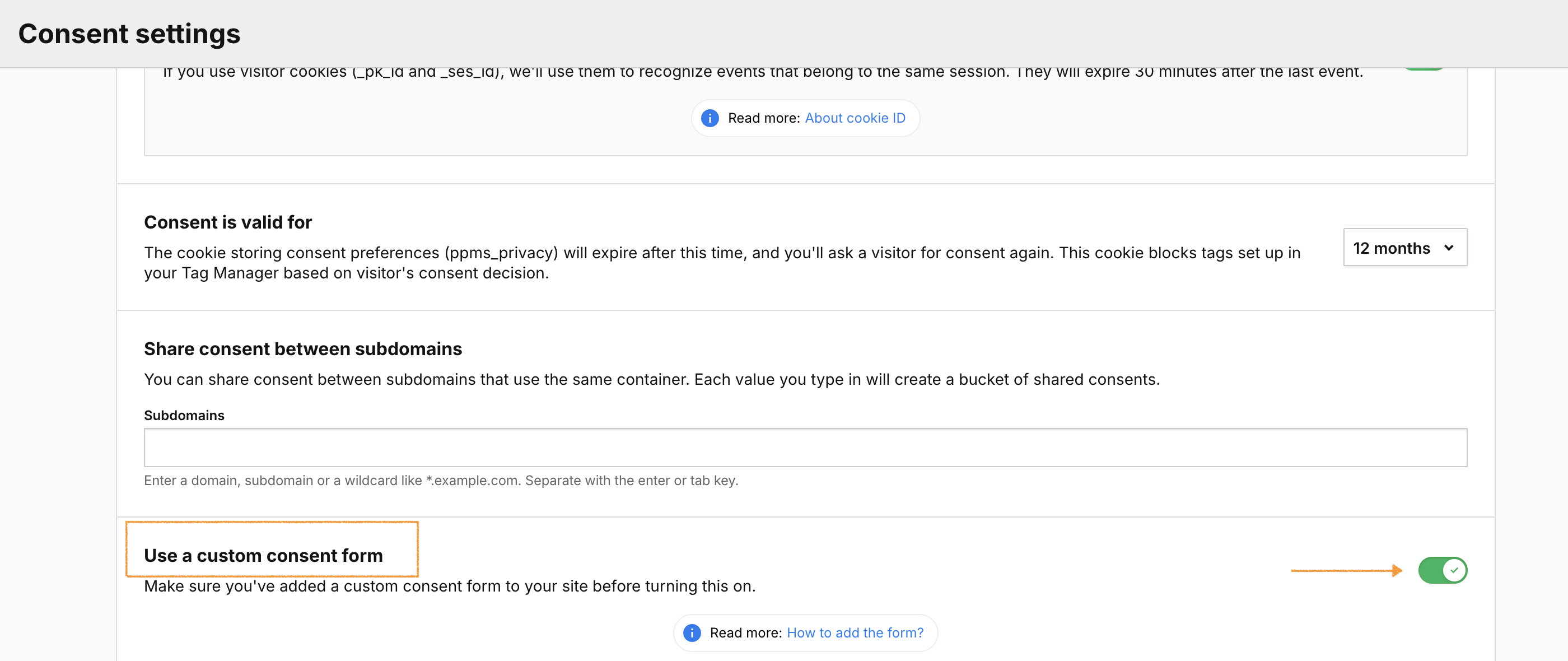
2. Turn on: Administration > Sites & apps > Privacy > Ask visitors for consent > Consent settings > Use a custom consent form.
Adjust the settings in Cookie Information
Here are the key setting you need to adjust in Cookie Information:
1. Make sure the shared consent option is turned off.
Note: When this feature is on, it creates a third-party cookie. Piwik PRO doesn’t use third-party cookies due to privacy and support concerns, so it can’t sync consents if shared consent is enabled.
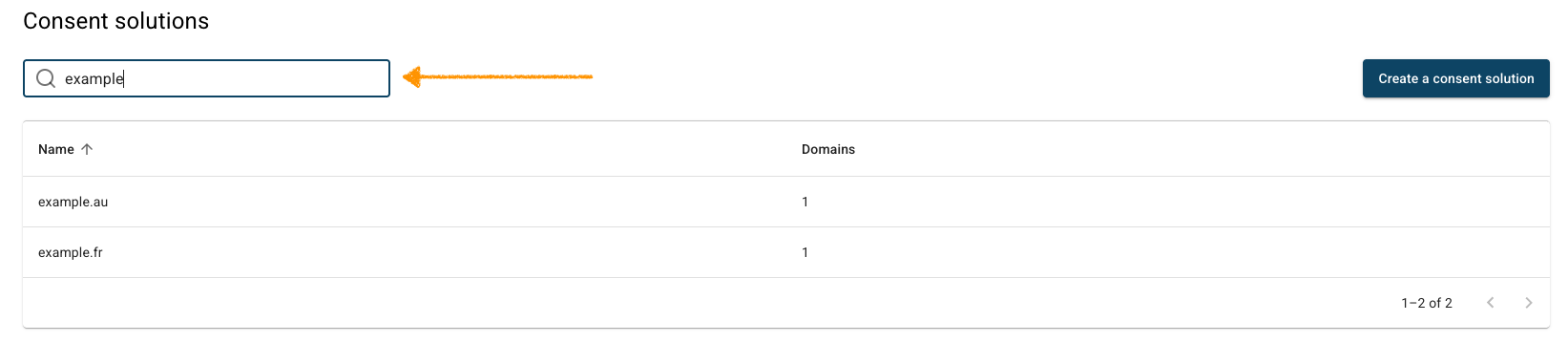
4. Navigate to Cookie management.
5. In Consent sharing and cookie control, turn off Shared consent.
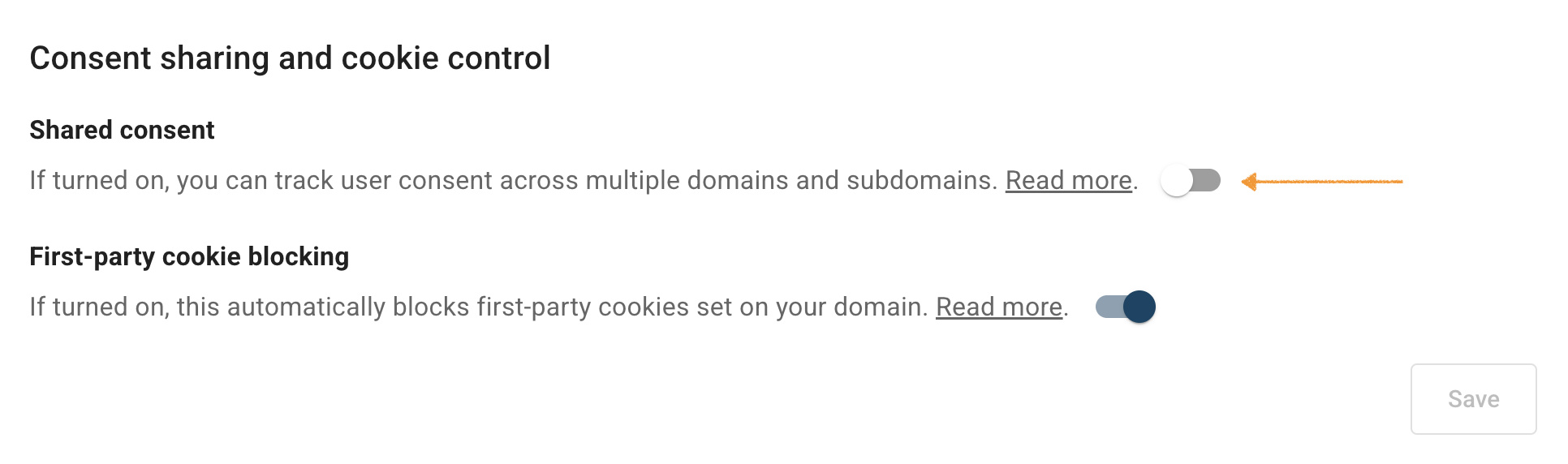
Note: This action disables the shared consent for domains in this consent solution only.
6. Click Save.
7. If you have changed Piwik PRO’s consent duration, update the ppms_privacy_* cookie in our Cookie Information. It means you need to create a new custom cookie. Here’s the instructions.
Note: The default consent duration in Cookie Information and Piwik PRO is 12 months. However, both tools let you adjust this period. If you change Piwik PRO’s consent duration, update the ppms_privacy_* cookie in Cookie Information accordingly. To do this, create a new custom cookie.
Set up a Cookie Information tag
To set up a Cookie Information tag in Piwik PRO, follow these steps:
1. Go to Piwik PRO.
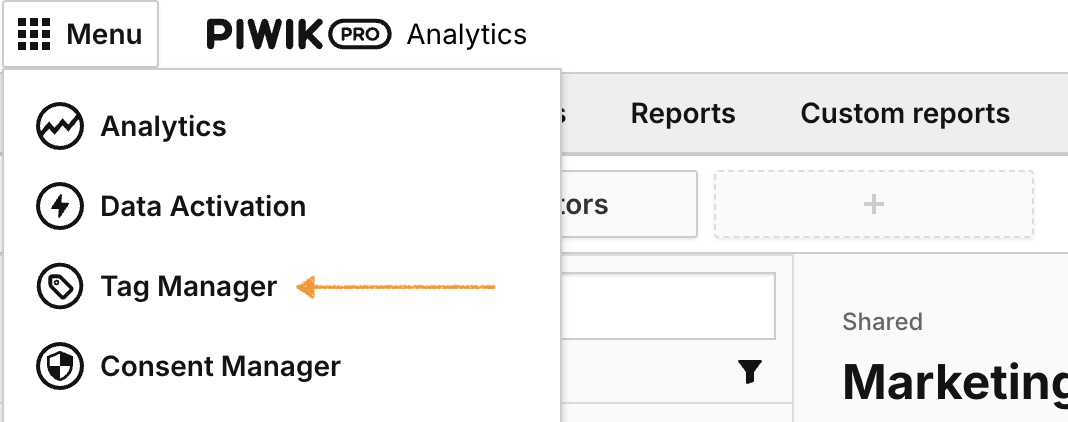
2. Go to Menu > Tag Manager.
3. In Tags, click Add a tag.
4. In Add a tag, choose the tag template: Cookie Information.
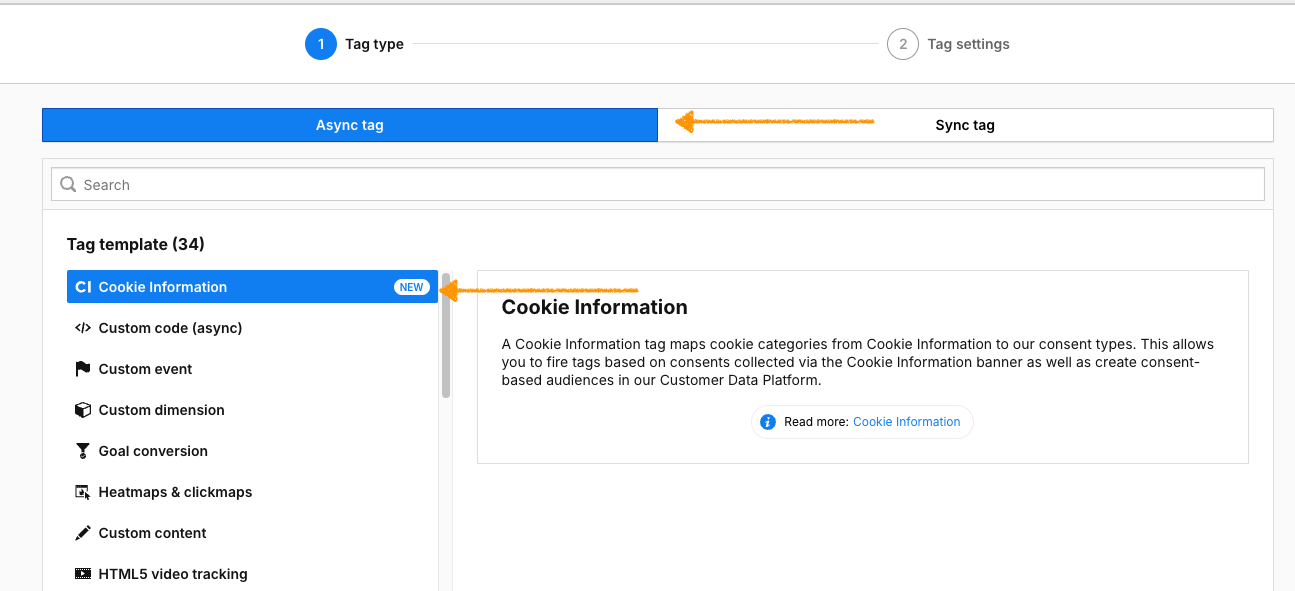
5. Click Next.
6. Name your tag, e.g. Cookie Information.

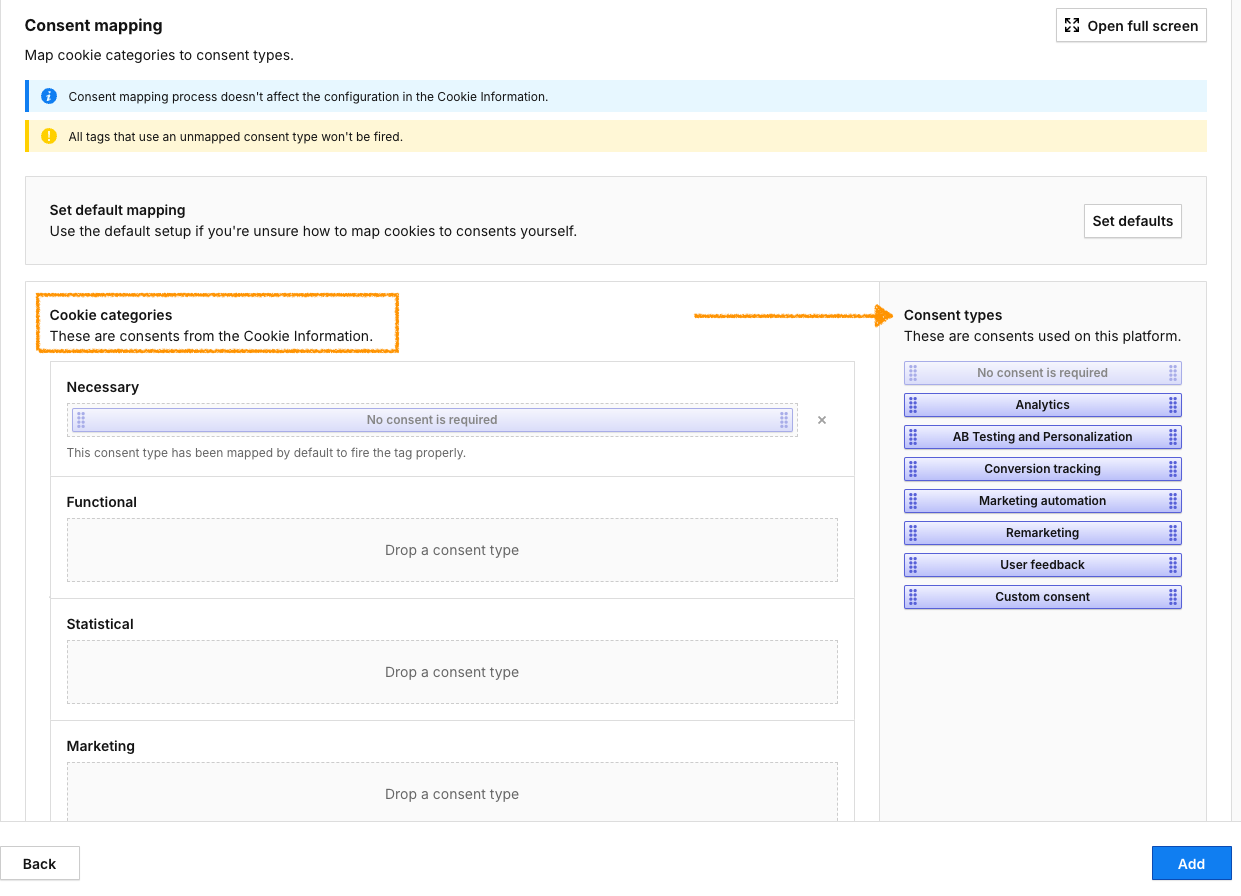
7. In Consent mapping, map Cookie categories to Consent types.
8. Click Add.
Note:
- You can use the default mapping by clicking ‘Set defaults’, but you can always change it.
- You can map multiple consent types to a single cookie category. For example, ‘Statistical’ can be mapped to both ‘Analytics’ and ‘Remarketing’.
- You can leave cookie categories and consent types unmapped. However, it’s a good practice to map all of them, just in case you decide to use them in the future.
- If you use an unmapped consent type in a tag, it won’t fire.
- ‘Necessary cookies’ are mapped to ‘No consent is required’ without the ability to change them.
- The Piwik PRO tag, responsible for collecting visitor data, requires ‘Analytics’ consent by default. So, if you want to collect such data, you need to map it to the right cookie type. Keep in mind that, by default, this tag will fire and collect anonymous data from visitors who haven’t consented. However, you can always turn off anonymous data collection. You can also change the default ‘Analytics’ consent set for the Piwik PRO tag.
- Each time you change the mapping of cookie categories to consent types, you need to click Reset consent in Cookie Information > Settings > Ask for consent again.
This option will reset consent for all domains in this consent solution. The consent popup will be shown again to all visitors. Use this only if you’ve made changes that require new consent from returning users, like updates to cookie purposes, legal basis, or vendors. This is a one-time action.
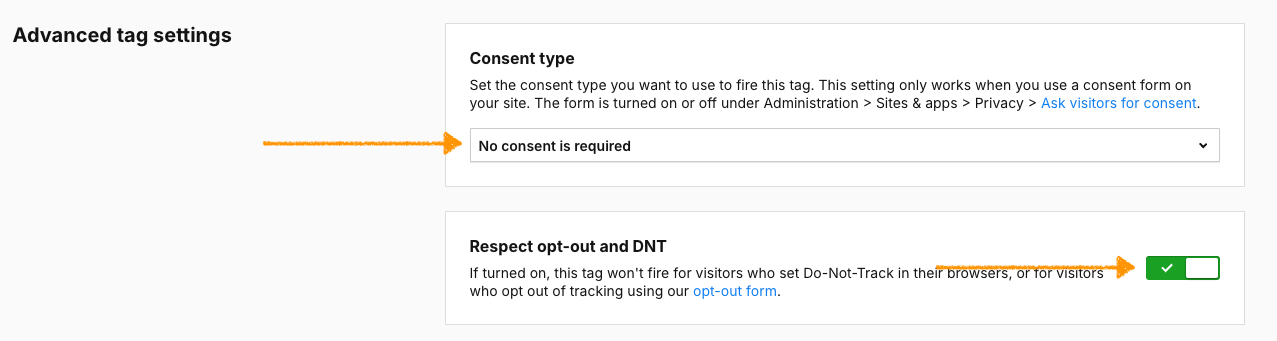
9. In Consent type, make sure the type is set to: No consent is required. This tag is set this way because it only maps consents. We need it to fire for all visitors so that consent information flows between Cookie Information and Piwik PRO.
Note: The Cookie Information tag you’ll set up in Piwik PRO doesn’t require consent. This tag is set this way because it only maps consents. We need it to fire for all visitors so that consent information flows between Cookie Information and Piwik PRO.
10. In Advanced tag settings, turn off Respect opt-out and DNT. This tag should fire for every visitor since it only maps their consents.
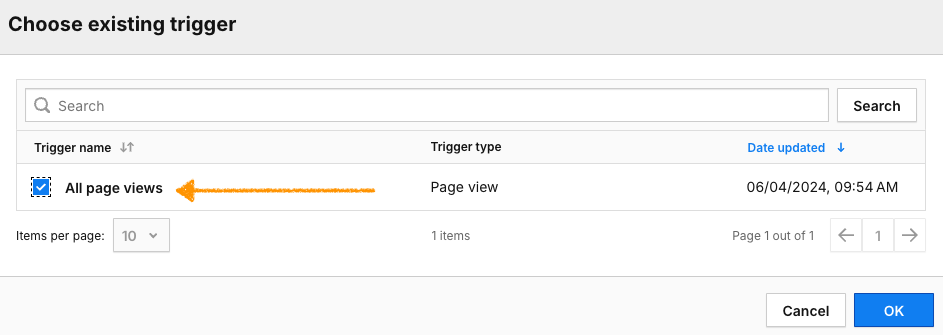
11. In Tag triggers, select Choose existing trigger.
12. Select the following trigger: All page views.
13. Click OK to save the trigger.
14. Click Add to add the tag.
15. Test your tag in debug mode.
16. When the tag works correctly, click Publish.
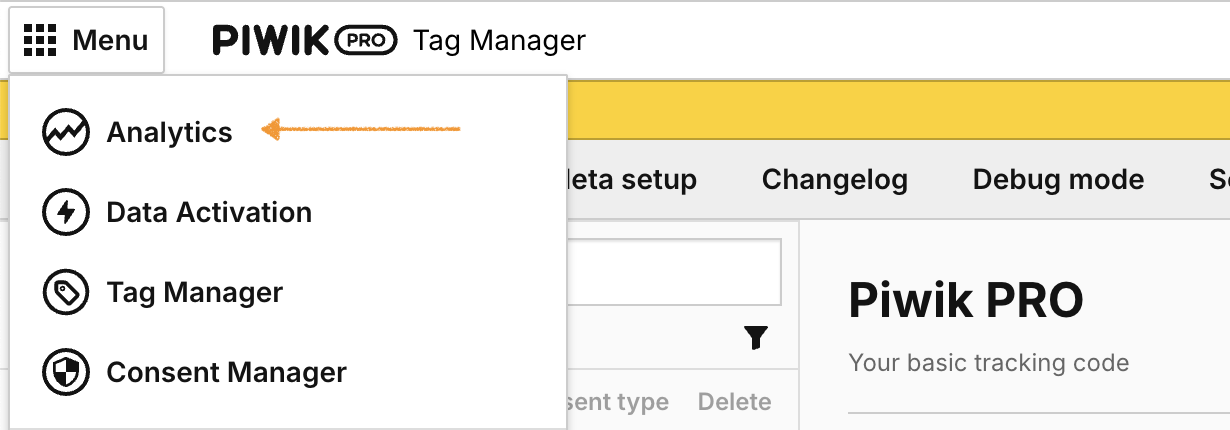
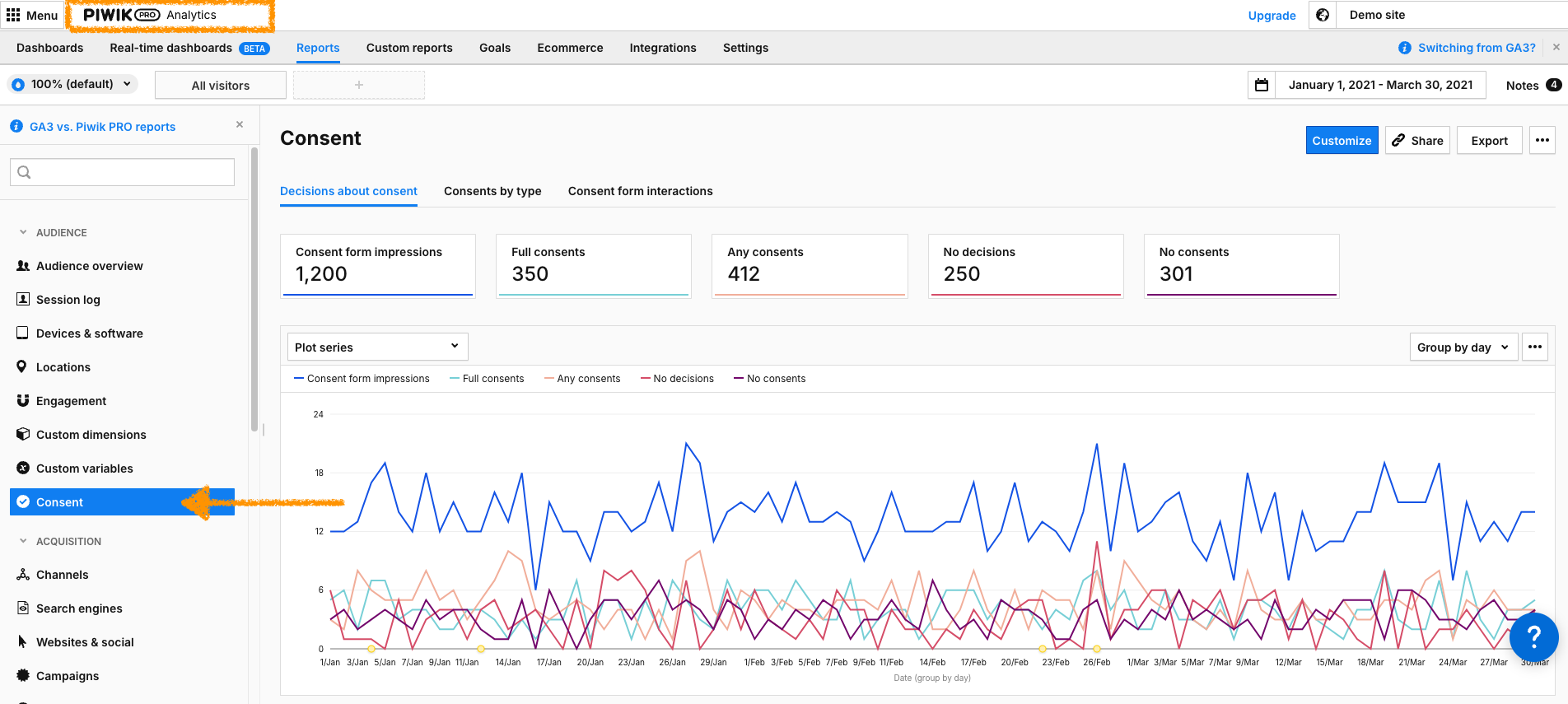
17. You can also view consent statistics in Piwik PRO.
18. In Piwik PRO, go to Analytics > Reports.
19. In Reports, go to Consent.
20. Done!


