
We regularly update our product so some consent popup templates may look or work differently. To ensure you’re using the correct version, check your template. This article shows you how.
Check the version of your consent popup template
To check the version of your consent popup template, follow these steps:
1. Log in to Cookie Information.
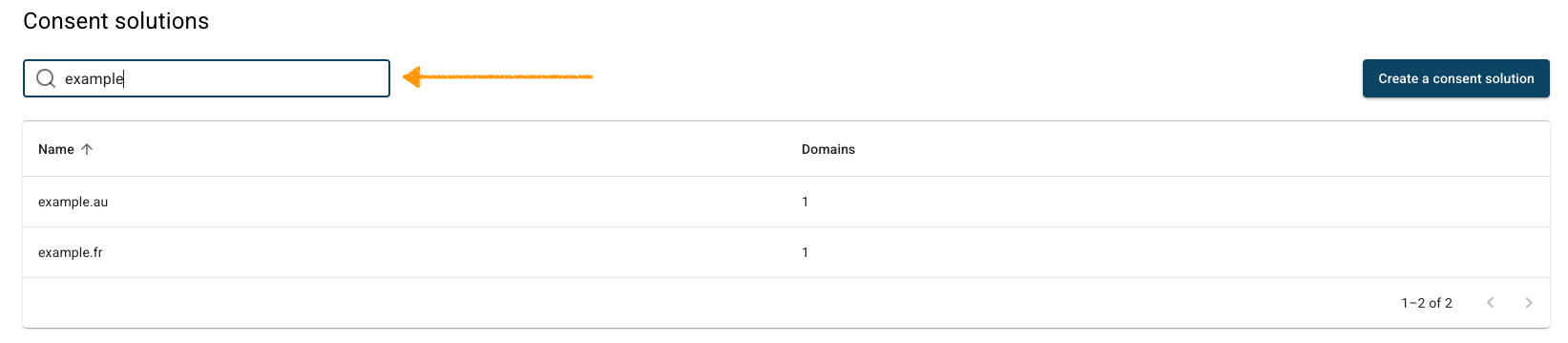
2. In Consent solutions, find the consent solution with the popup template you want to check.
3. Go to Consent popup > My templates.
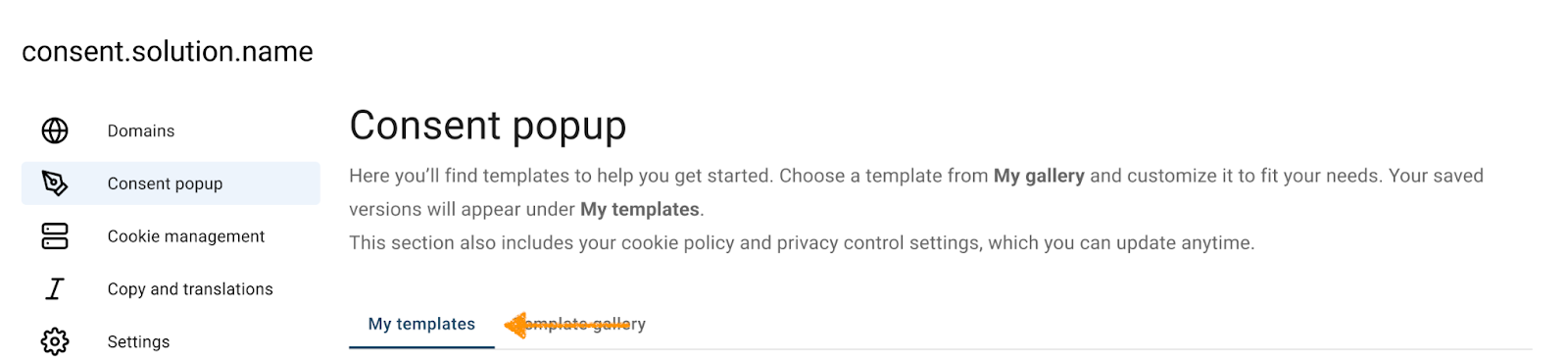
4. Find the published template you want to check.

Note: The Published label shows which template is currently active for your consent popup.
5. Click the ⋯ three-dot icon next to the template, then click Edit.

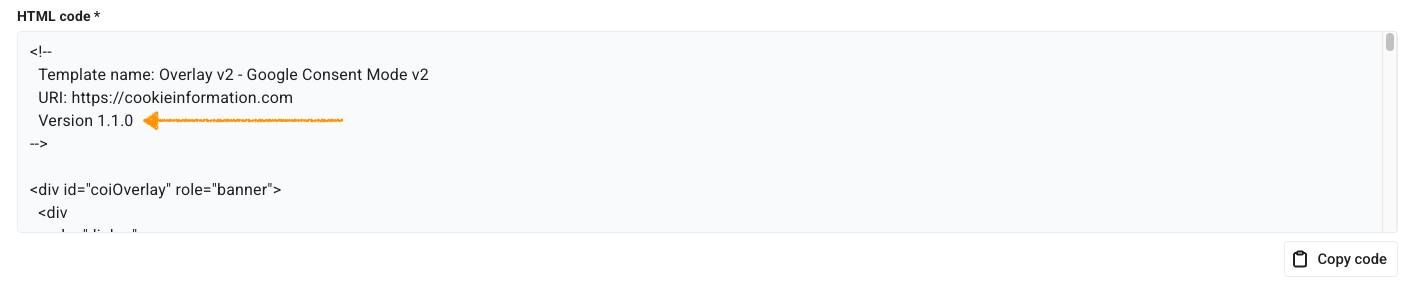
6. In Template code, go to HTML code*.
7. Look for the template version. In this case, it’s 1.1.0.
8. Done.


