
You can adjust the font of your consent popup to match your website’s design. A font family is a group of fonts that share a similar design but vary in style, weight, or other attributes. It uses one set of fonts to keep your text consistent.
In this article, we’ll show you how to change the font size and family.
Before you start
Here are a few things to know before you start:
- The following guide is for Overlay v2 and Overlay v3 templates, version 1.1.0 or higher. The older versions might need different changes.
- Starting from version 1.1.0, the Overlay v2 and v3 templates support CSS variables. You can find them at the top of the CSS box.
- In December 2025, we updated the Overlay v2 and v3 templates to version 1.2.0. Depending on when your setup was created or last updated, you may have either version 1.1.0 or 1.2.0.
Check your template version before you make any changes:
Part 1 of the article applies to Overlay v2 and v3 templates (v1.1.0)
Part 2 applies to Overlay v2 and v3 templates (v1.2.0)
Change the font size and family in a consent popup template version 1.1.0
To change the font size and family in the consent Overlay v2 and Overlay v3 templates version 1.1.0, follow these steps:
1. Log in to your Cookie Information account.
2. In Consent solutions, find the consent solution where you want to change the template’s font size.

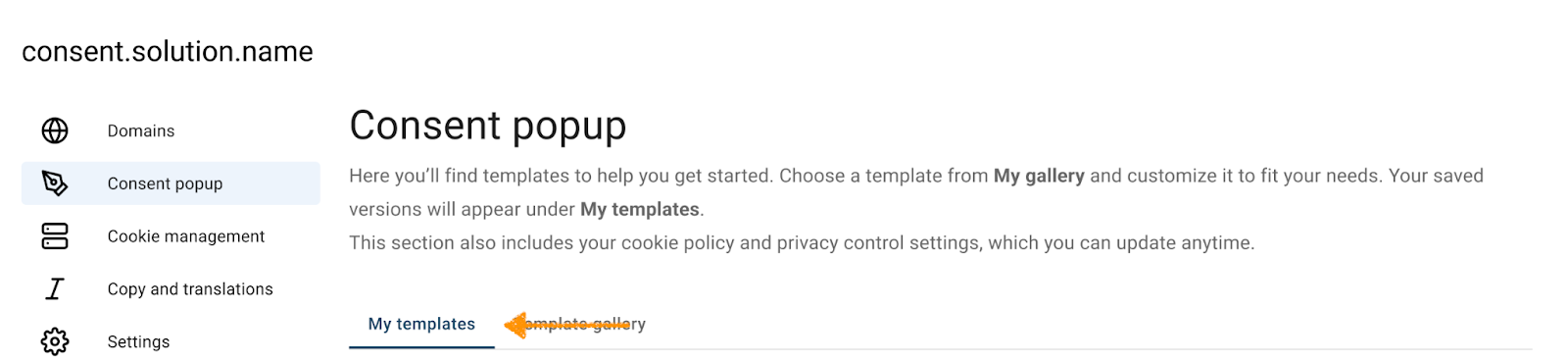
3. Go to Consent popup > My templates
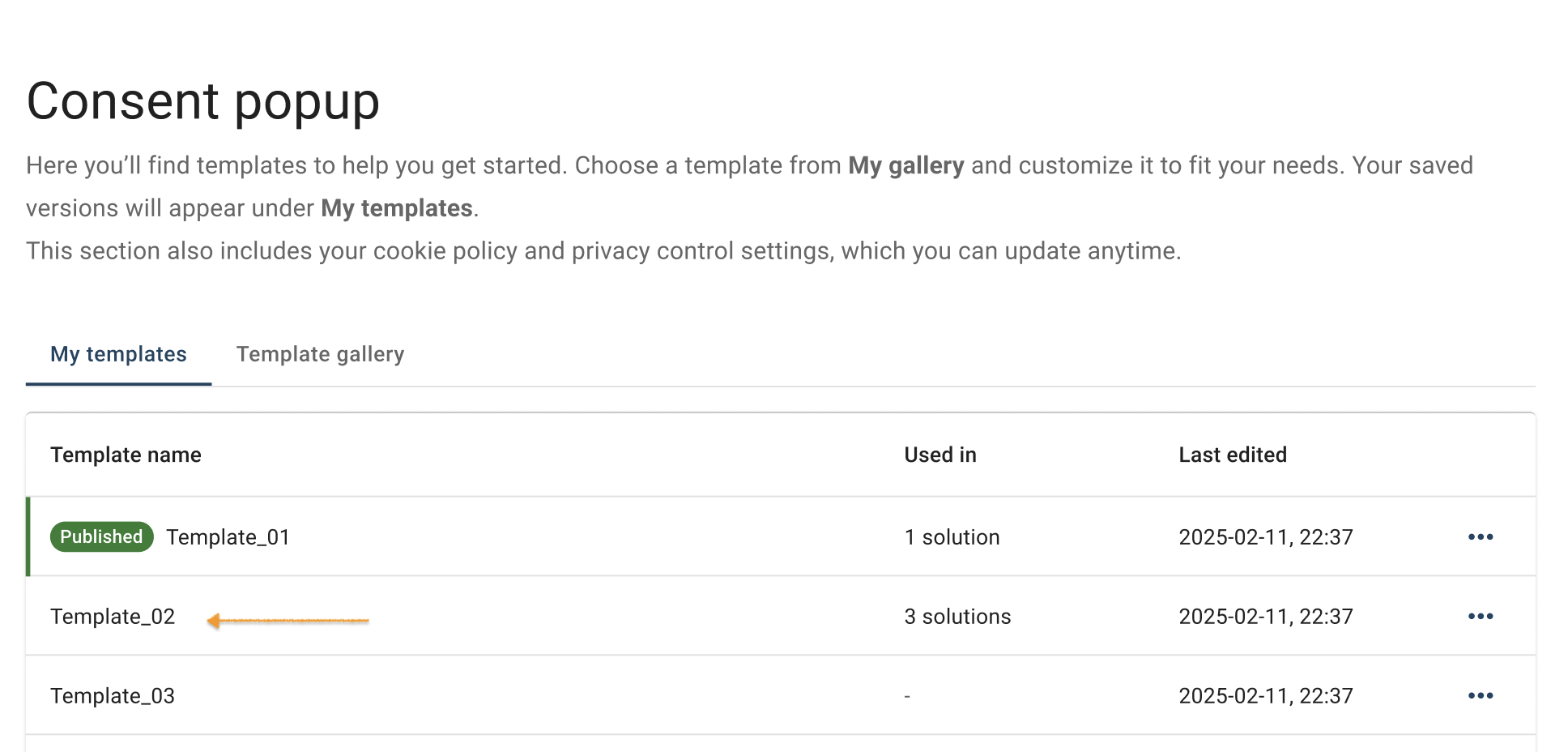
4. Find the consent template you want to resize.
5. Click the ⋯ three-doticon next to the template name you want to change, then click Edit.
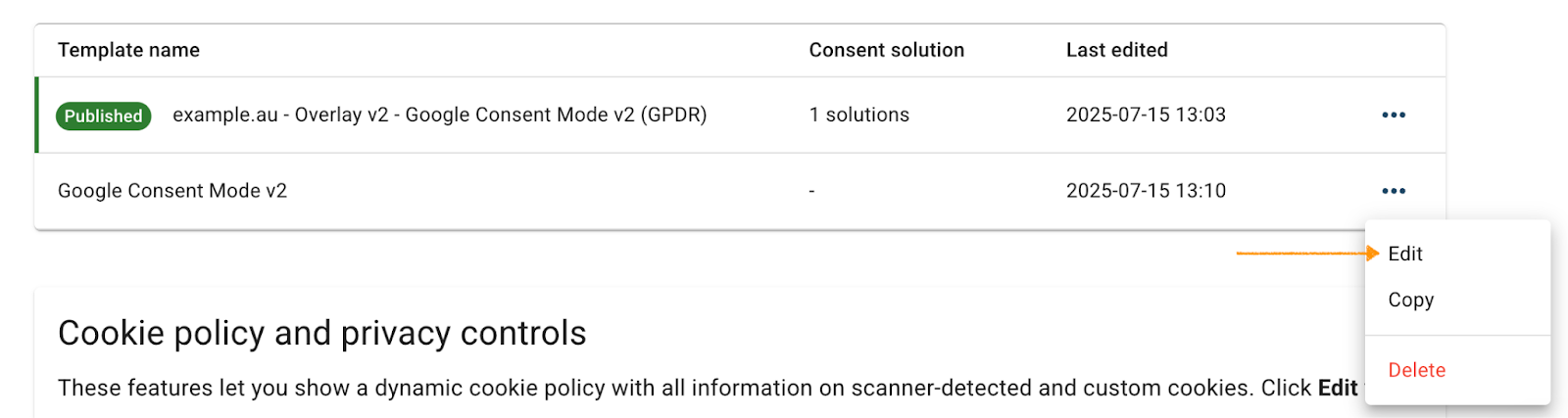
Note: The Published label shows which template is currently active for your consent popup:

6. In Template code, go to CSS.
Note: Make sure you’re editing version 1.1.0.
7. Find the CSS class .coi-banner__page.
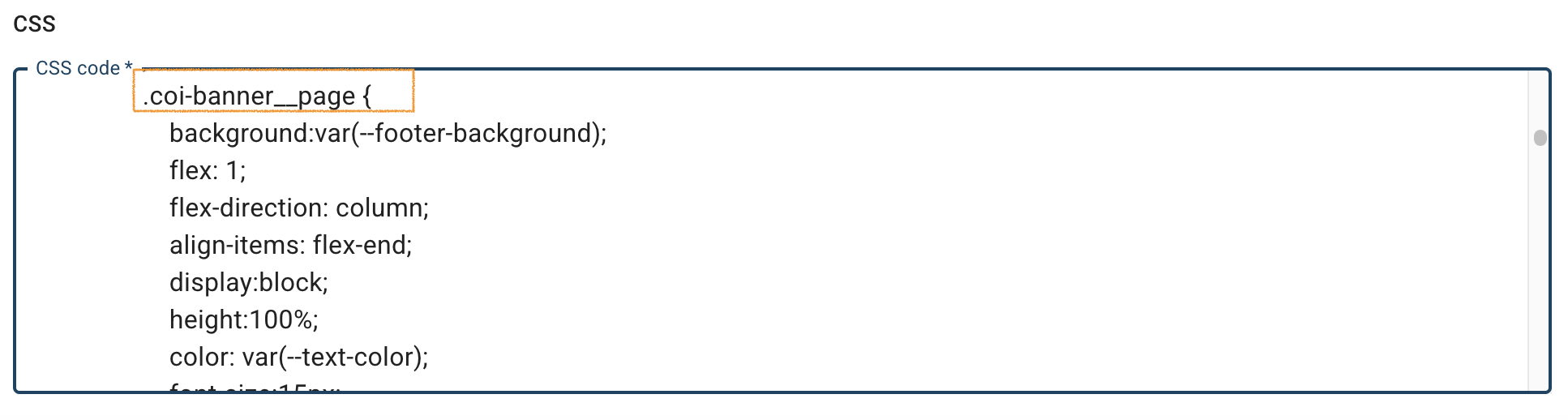
8. To change the font size, update the pixel value in the font-size property.
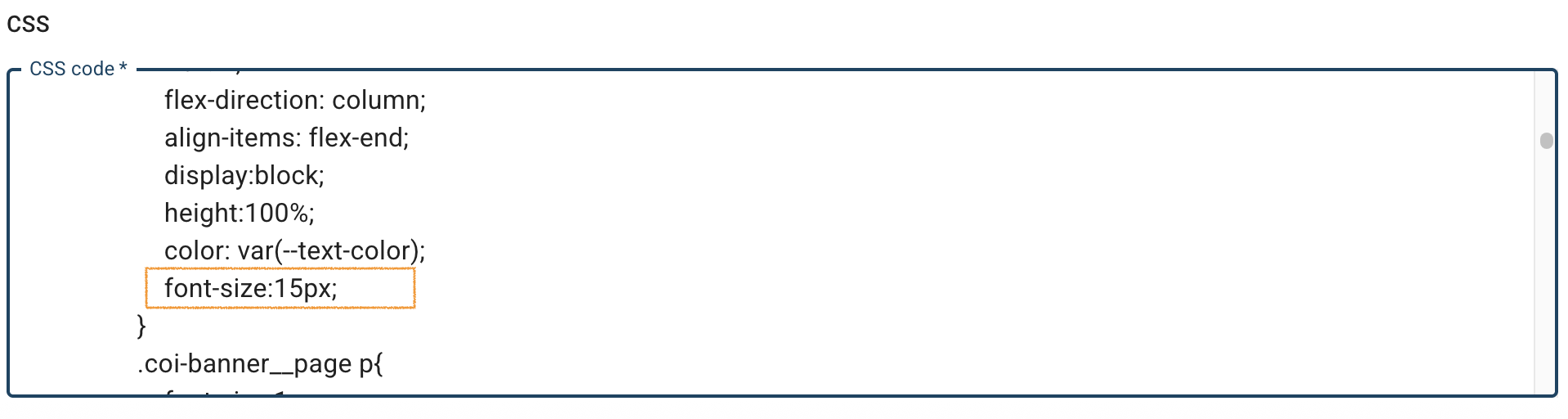
9. To change the font family, add the font-family property with the font name:
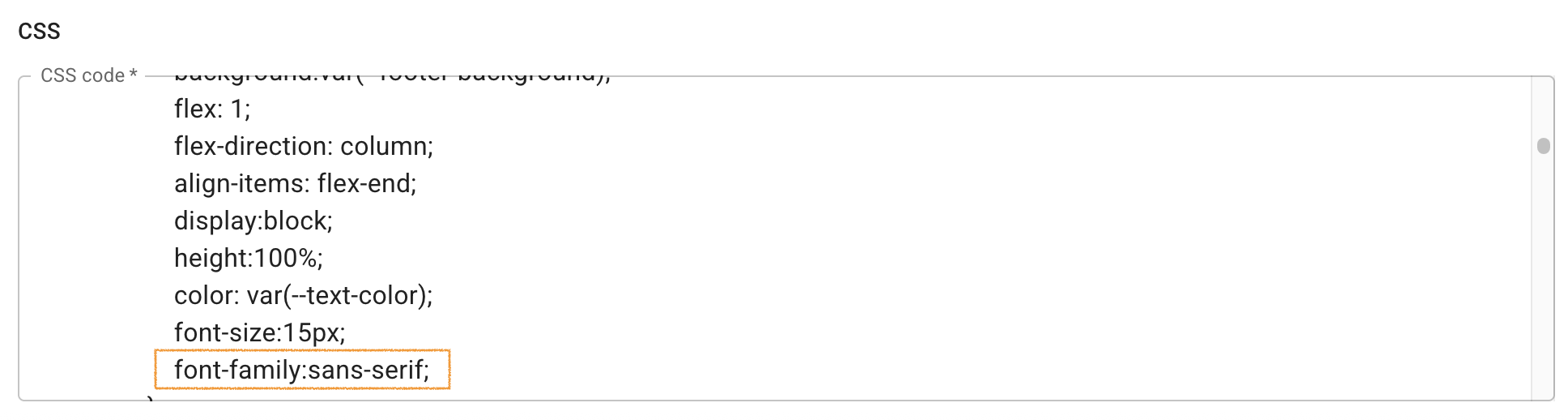
Note: The font family must be either a single <string> value or a space-separated sequence of <custom-ident> values.
10. Click Save and publish.
Note: Clicking Save only saves changes to your template. To publish the updated template, click Save and publish.
9. Done.
Change the font size and family in a consent popup template version 1.2.0
To change the font size and family in the consent Overlay v2 and Overlay v3 templates version 1.2.0, follow these steps:
1. Log in to your Cookie Information account.
2. In Consent solutions, find the consent solution where you want to change the template’s font size.

3. Go to Consent popup > My templates.
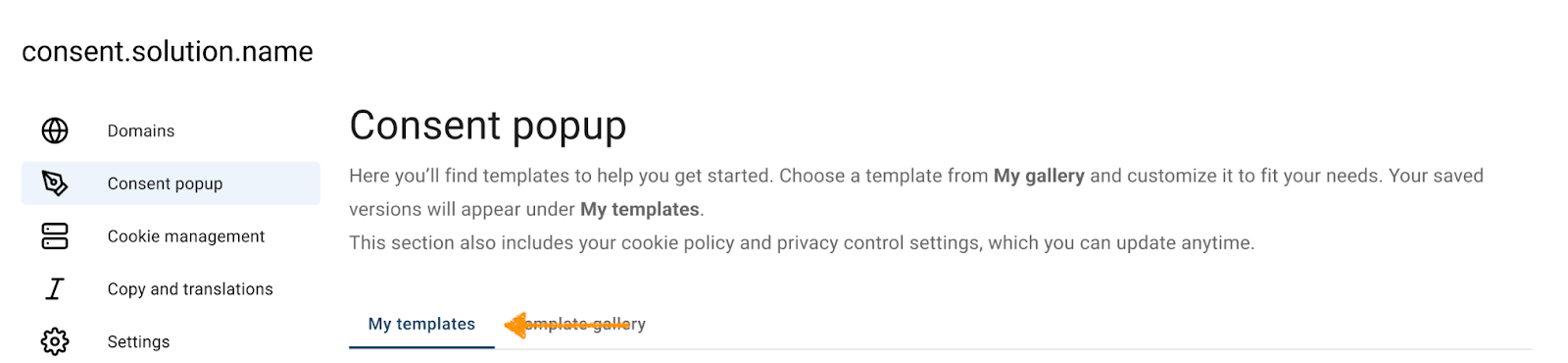
4. Find the consent template you want to resize.
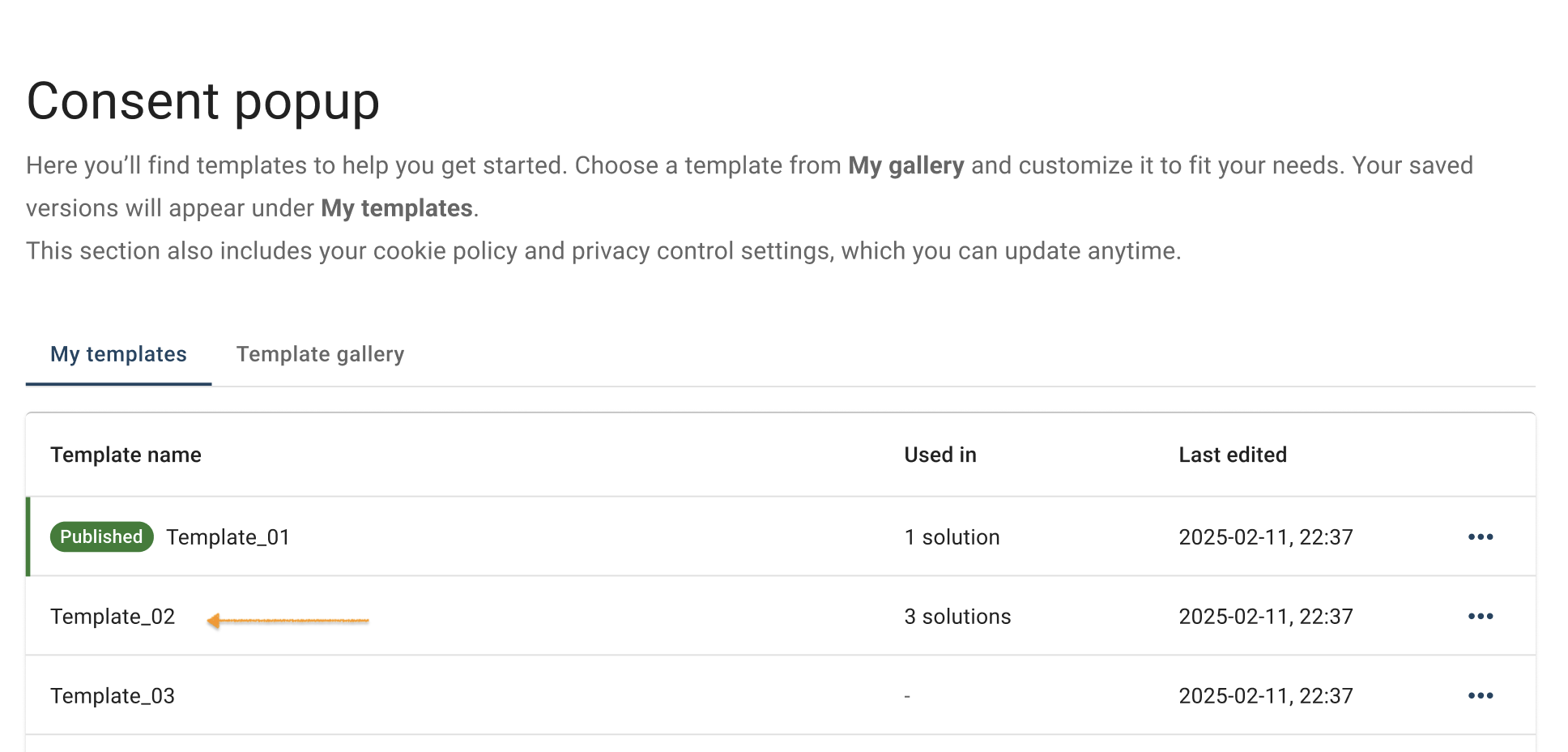
5. Click the ⋯ three-doticon next to the template name you want to change, then click Edit.
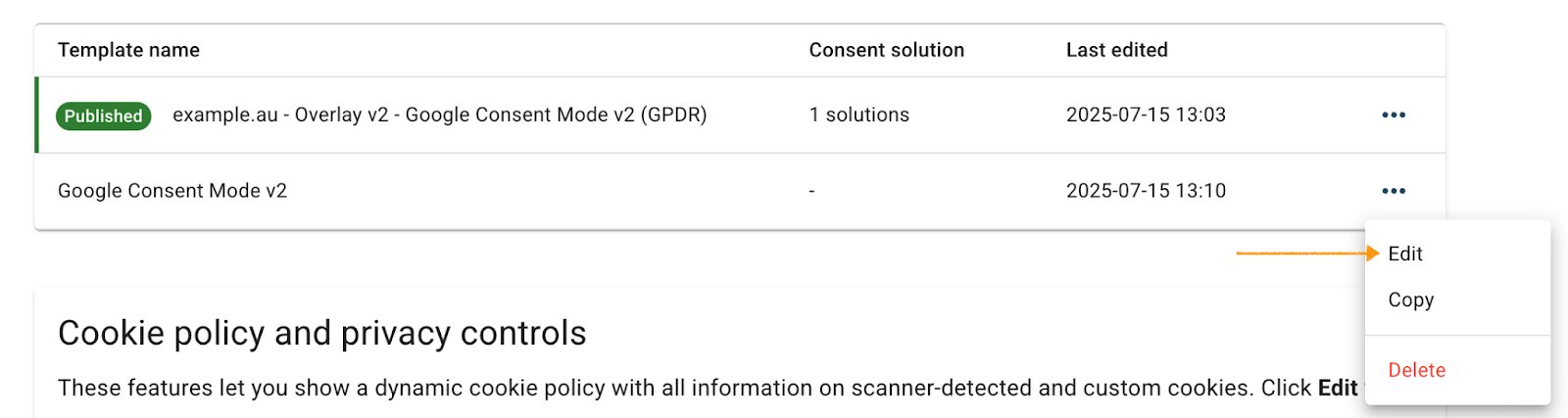
Note: The Published label shows which template is currently active for your consent popup:
6. In Template code, go to CSS code *.
Note: Make sure you’re editing version 1.2.0.
7. Find the variable --popup-font-size.
8. To change the font size, update the pixel value in the font-size property.
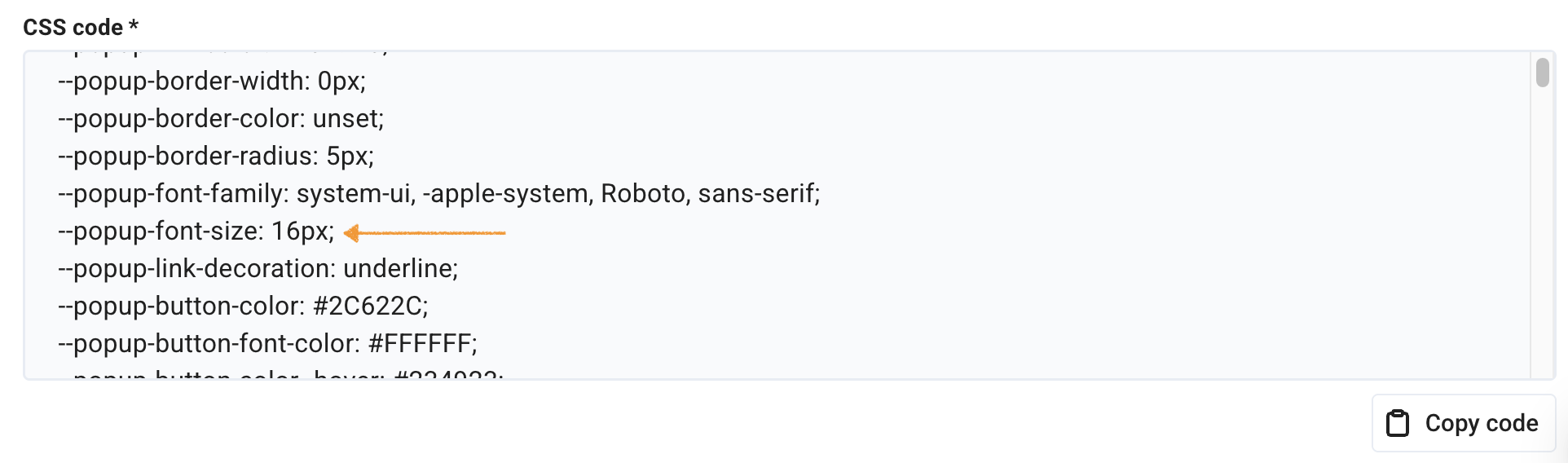
9. Find the variable --popup-font-family.
10. To change the font, enter the name of the font family you want to use.
11. Click Save and publish.
Note: Clicking Save only saves changes to your template. To publish the updated template, click Save and publish.
12. Done.


