
If you need a different layout, design, or functionality to meet your website or compliance needs, you can customize your consent popup template. With the recent platform upgrade, you can now edit templates using either the visual editor or developer mode.
Developer mode is a code editor that lets you manually edit HTML, CSS, or JavaScript. It’s the same editor you’ve been using in Consent popup > Template code. It just has a new name.
In this article, we’ll show you how to edit a consent popup template in developer mode.
Before you start
Here are a few things to know before you start:
- Templates you created or edited before the visual editor was released were automatically migrated to developer mode.
- Once you edit and save a template in developer mode, that template and its copies can no longer be edited in the visual editor. They can only be edited in developer mode.
- When you switch between the visual editor and developer mode in the same editing session, your changes are kept in both views. You can switch back to the visual editor and still see the fields you previously updated. You can switch back to developer mode and see the code you previously updated.
- You can use the visual editor only for Overlay v2 – Google Consent Mode v2, and Overlay v3 – Google Consent Mode v2 templates. But you can’t edit the templates you published before this editor was released with the visual editor. You need to choose a new template from the Template gallery.
- When editing your template, it will revert to the default version. This means any changes you’ve made to the HTML, CSS, or JavaScript in Template code will be removed. We recommend copying the code first, updating the template, and then pasting the updated code into the new version.
- When you switch between the visual editor and developer mode in the same editing session, unsaved changes stay only in the mode where you made them. After you save the latest version in the visual editor, it will be available in developer mode too.
Customize your consent popup template in developer mode
To customize your consent popup template in developer mode, follow these steps:
1. Log in to Cookie Information.
2. In Consent solutions, findthe consent solution where you want to style the popup template.

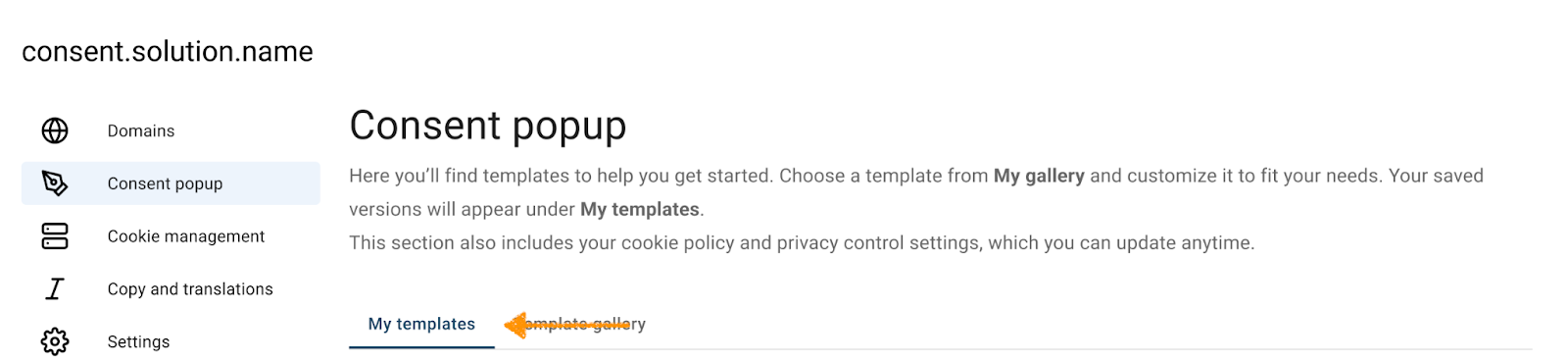
3. Go to Consent popup > My templates.
4. Click the ⋯ three-dot icon next to the template name you want to change, then click Edit.
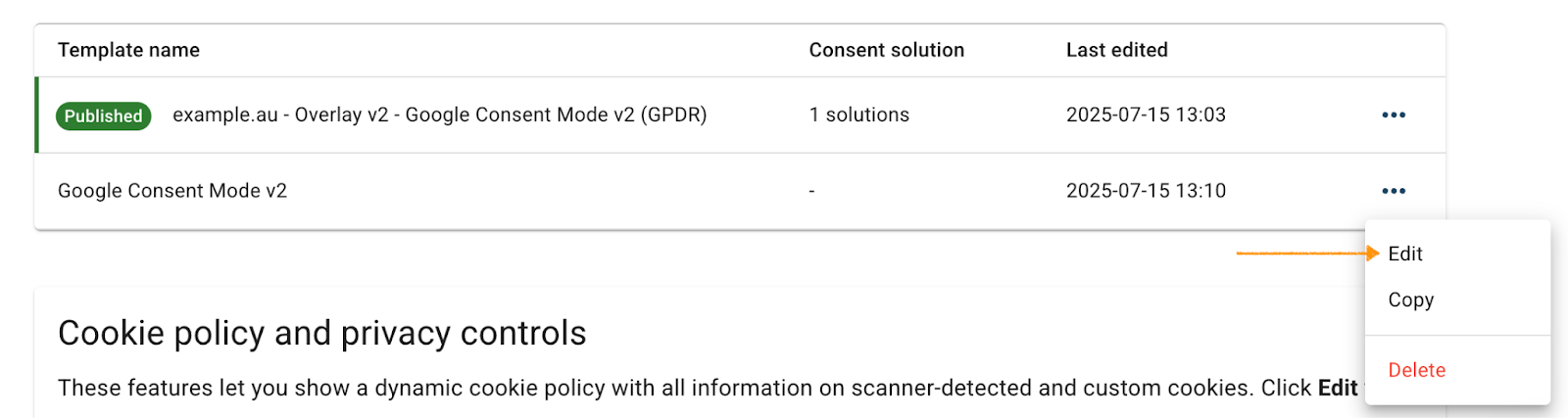
Note: The Published label shows which template is currently active for your consent popup:

5. In Consent popup, go to Template code.
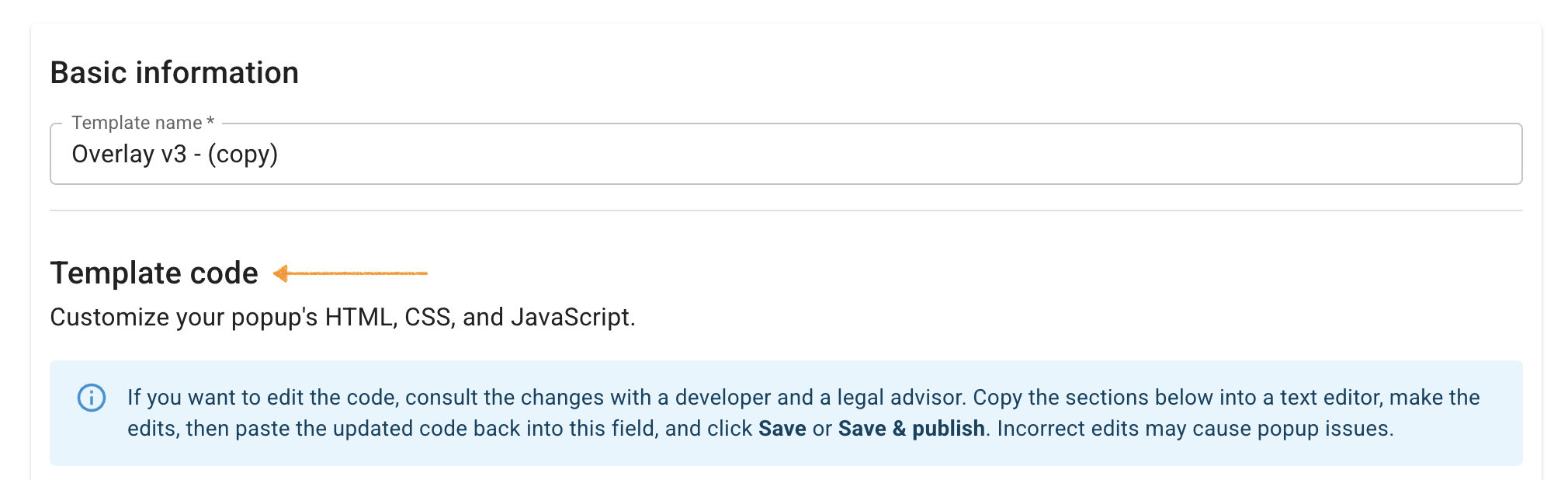
6. In HTML code* and CSS code*, you can style your template.
Note:
- If you need to edit HTML, CSS, or JavaScript, we recommend copying the code first, making your changes, and then pasting it back into the appropriate fields.
- If you need to adjust your Overlay v2 and Overlay v3 templates, version 1.1.0 or higher, read more here:
7. If you want to change the background color of the consent popup version 1.2.1, go to CSS code*.
8. Find the variable representing the background color --popup-bg-color--primary.
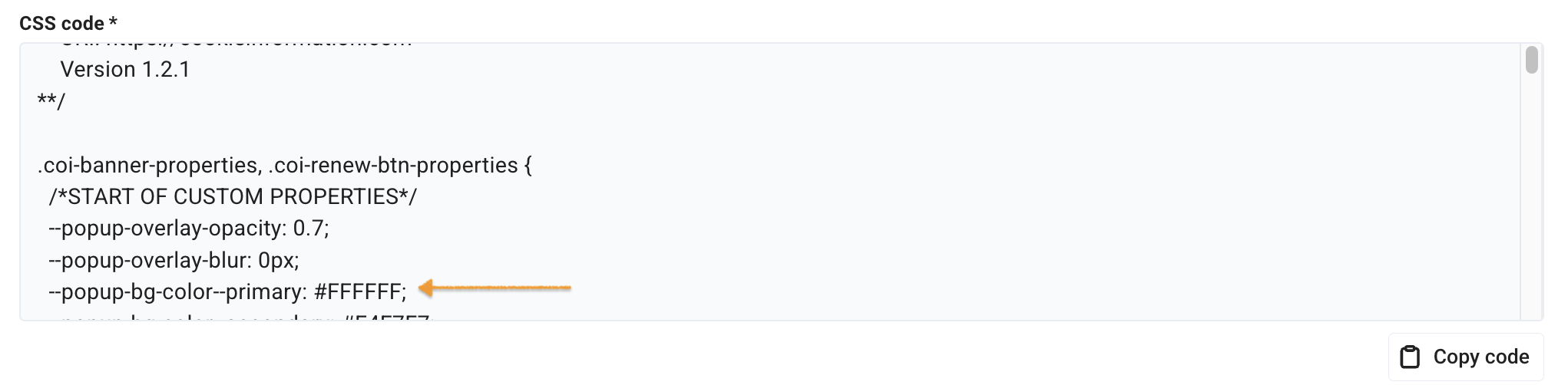
Note: To find the list of other variables that control the changes in the popup version 1.1.0 and 1.2.0, read this article.
9. Replace the current HEX value, #FFFFFF, with the code for your desired color.
10. When you’re done styling and have confirmed the correct version is selected, click Save and publish.
Note:
- Clicking Save only saves changes to your template. To publish the updated template, click Save and publish.
- Changes to your consent template may take up to 10 minutes to appear on your domain.
11. All set!


