
- Go to Data Discovery by Cookie Information and login
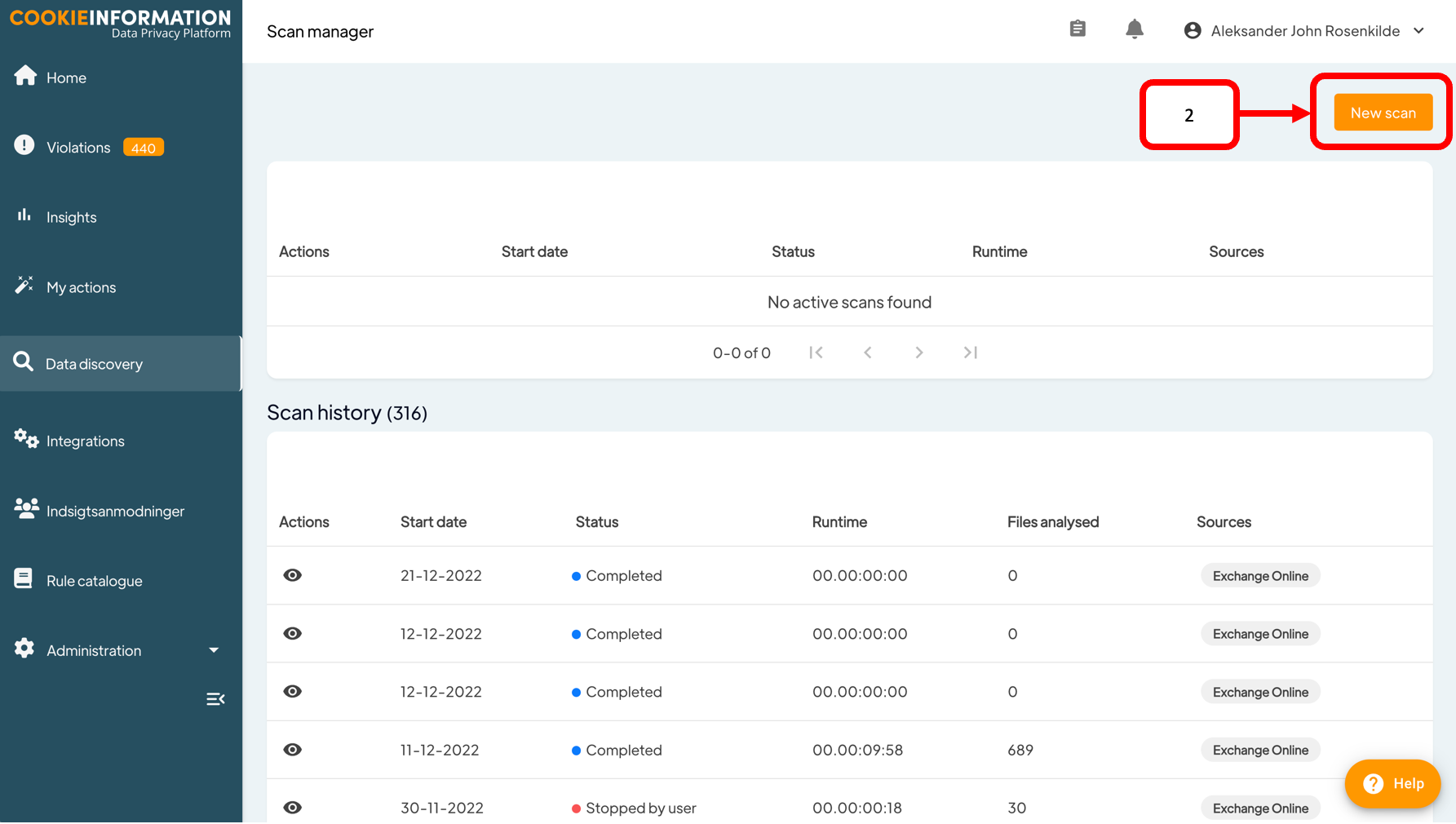
- Then go to the Data Discovery page and click New scan
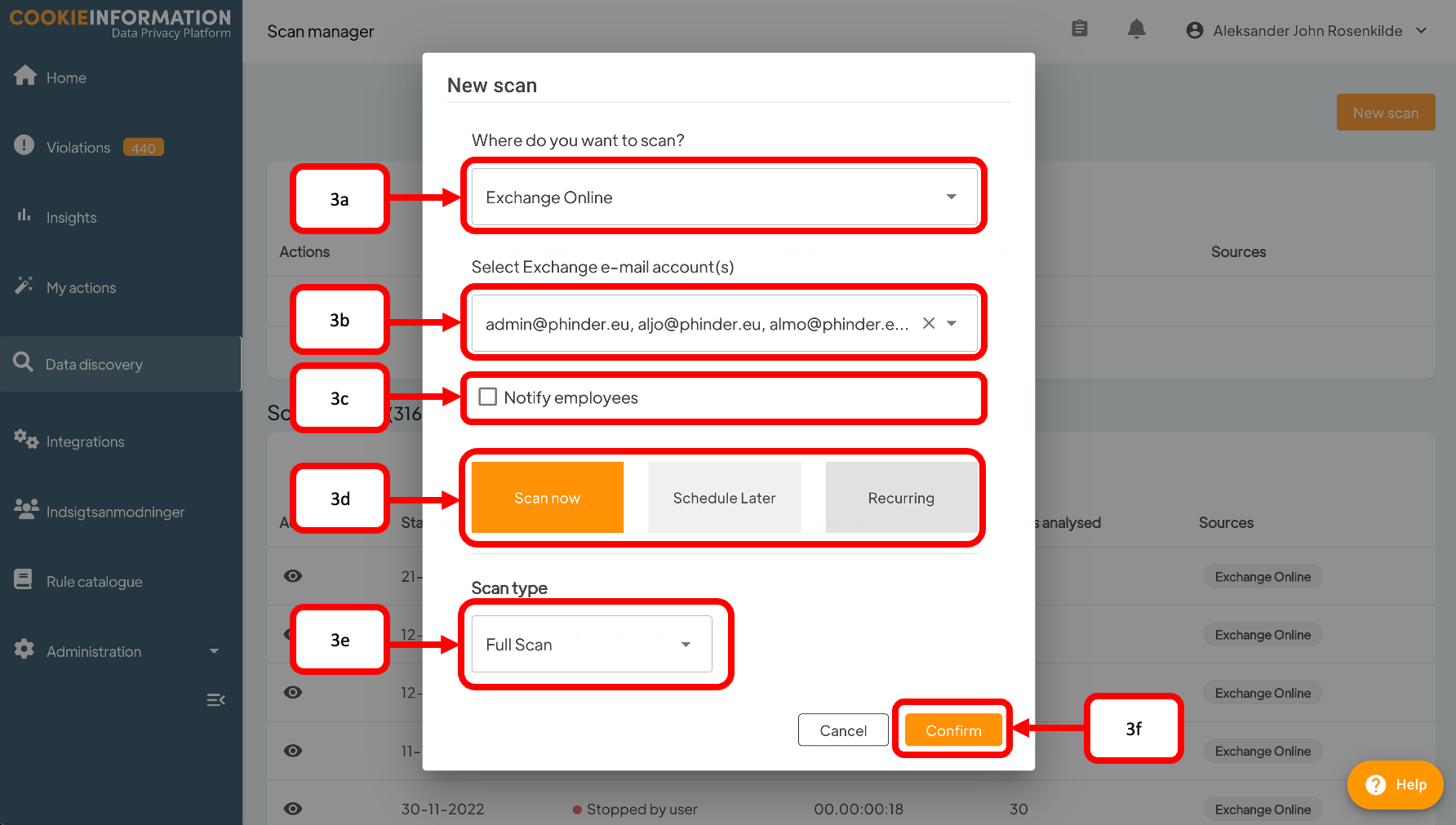
- In fill in the following information
- Select the data source you wish to map. If you have not connected any data sources then you can read the article on how to connect data sources.
- When mapping a data source, you need to choose what you want to map. The options will depend on the data source you have selected. For example, you can map an employee account for emails or OneDrive, or sites for SharePoint. If you have selected file shares, you need to provide the UNC path for the specific file share you want to map.
- You can choose to notify your employee after the mapping is completed. They will receive a friendly email message with their number of violations and a link to the platform. You can read more about how to change the email message here.
- You can choose between three different types of data mappings:
- Scan now: Is an instant mapping which start right away or placed in the que if another mapping is already running.
- Schedule later: Will allow you to select a date and time for the the mapping will take place.
- Recurring (recommended): You can set up an recurring mapping. That way you ensure to have an updated mapping of your data sources. We recommend that you run a mapping each week.
- If you select Scan now then you three different types of scanning options:


