
The Interactive Advertising Bureau’s Transparency and Consent Framework (IAB TCF) v2.2 is an industry-standard framework for collecting and managing user consent for advertising and data processing.
In this article, we’ll show you how to use the IAB TCF with Cookie Information to help you meet GDPR and ePrivacy requirements.
Before you start
Here are some things to know before you start:
- The IAB Consent & Transparency Framework (TCF) is designed for companies involved in digital advertising and data processing. It primarily helps:
- Publishers: Websites and apps that display ads and collect user data.
- Advertisers: Businesses that use targeted ads to reach audiences.
- AdTech vendors:Companies that provide technology for serving and managing ads (e.g., ad networks, data management platforms).
- Suppose you use the IAB Transparency & Consent Framework (TCF) and send the correct consent string to your vendors. In that case, you must use a consent popup that IAB has approved based on specific criteria.
- The IAB sets strict design rules your consent popup must meet to comply with its framework. Use the IAB-approved template to ensure your setup follows these requirements.
You can view the IAB TCF 2.2 template below.
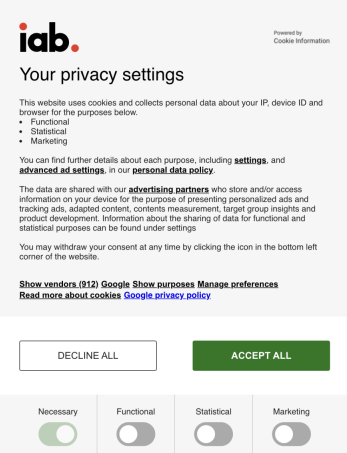
The image above shows the default, unstyled version of the consent popup.
Note: You can customize the styling and replace the IAB logo with your own in the template’s JavaScript. Read more
The functionality of the popup automatically hides empty cookie categories. This functionality blocks you from seeing the final design before the complete scan, and the cookies are listed. Only domains listed as “public domains” will be scanned. The scan will finish 24-48 hours after adding the domains as a “public domain” in the Cookie Information Platform.
Set up the IAB TCF v2.2 consent popup template
- Log in to your Cookie Information account.
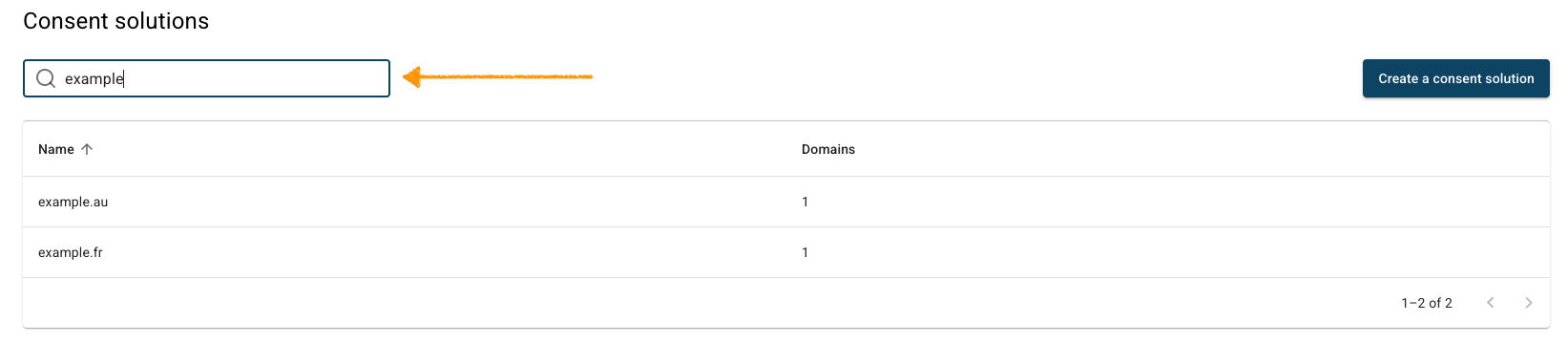
- In Consent solutions, find the consent solution where you want to use a new consent popup template.
- Go to Consent popup > Template gallery.
- Click Use this template next to IAB TCF v2.2 + Google Consent Mode v2 template name.

- Click Save and publish.
Note: Clicking Save only saves changes to your template. To publish the template, click Save and publish.
- Done
Note: The IAB TCF popup template now applies to the domains in this consent solution. Other consent solutions in your account won’t be affected.
Implement it on your website
Adjust the consent popup script by adding an attribute. To ensure that you send the correct consent string via TCF, you need to replace the standard popup script. The correct version is the one containing the two TCF attributes, as you see below.
<script id="CookieConsent" type="text/javascript" src="https://policy.app.cookieinformation.com/uc.js" data-culture="EN" data-tcf-v2-enabled="true" data-tcf-version="2.2"> </script>If you already have implemented the standard consent popup script on your website, replace it with the one above.
Note: Make sure to change the data-culture attribute to the specific language you use for your popup. You can find all the language codes and information in this guide.
Here you can see the description of each data attribute in the TCF script:
data-culture="en" ---> CONTROLS THE LANGUAGES
data-tcf-v2-enabled="true" ---> ENABLES TCF
data-tcf-global-scope="false"---> ENABLES GLOBAL VS. LOCAL SCOPE OF THE CONSENT STRING
Reset consent
When switching from version 2.0 to 2.2, ensure that consent is reset. This ensures policy compliance and updates the setup on your site.
That means you need to ask visitors for consent again. Here’s how to do it:
Note: Ask visitors for consent again option will reset consent for all domains in this consent solution. The consent popup will be shown again to all visitors. Use this only if you’ve made changes that require new consent from returning users, like updates to cookie purposes, legal basis, or vendors. This is a one-time action.
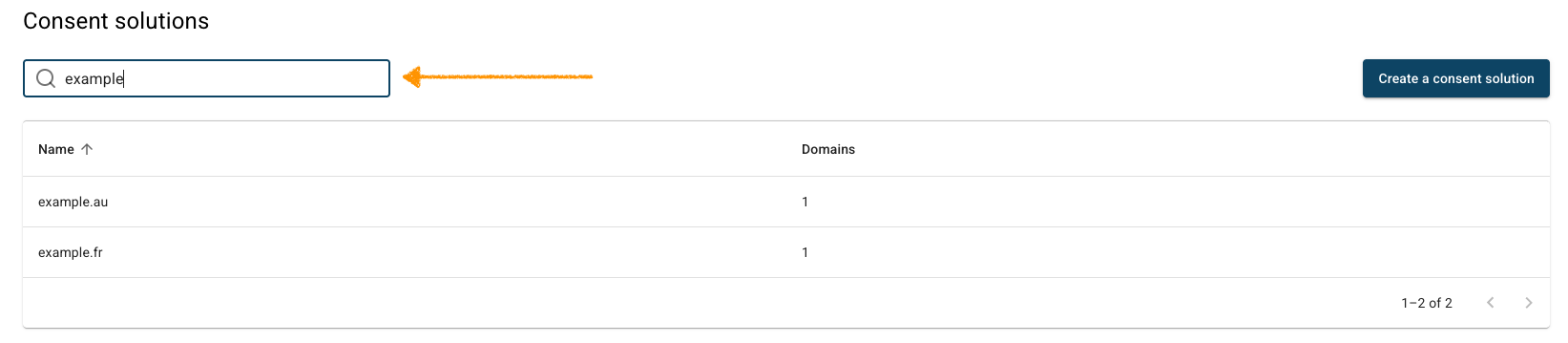
- In Consent solutions, find the consent solution you want to reset consent.
- Go to Settings.
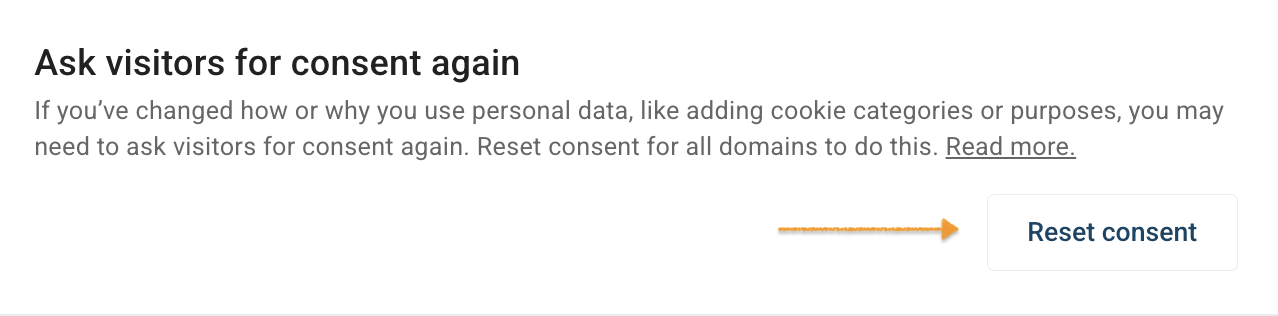
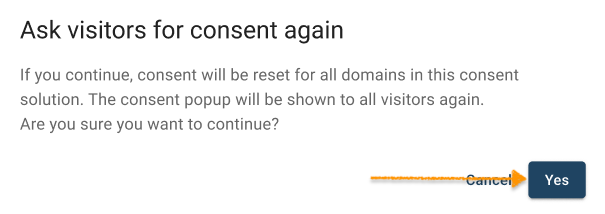
- In Ask visitors for consent again, click Reset consent.
- Click Yes in the modal.
- Done.
Working with TCF and the cookie control SDK
The consent popup will include the full functionality of the cookie control SDK, with the addition that the marketing category also will also fire the IAB TCF consent string. This functionality ensures that if a user declines the marketing category, they would also decline in the TCF consent string and vice versa.
Managing vendors and purposes
When using TCF 2.0, you can manage the data shown in the consent popup about vendors and purposes you want to use.
So instead of using the TCF global vendor list with all registered services, you can create your own vendor list.
When you manage or change TCF data, it instructs Cookie Information, as your CMP, to update the TCF string object accordingly.
To manage your vendor list, you need to add a configuration in your source code (as an inline script) before the main Cookie Information uc.js script.
It’s in JSON format. All of the settings are optional, and if not defined, CMP will make a fallback to the TCF global vendor list.
Config is named IABTCF2Framework :
<script> window.cookieInformationCustomConfig = {
IABTCF2Framework: {

allowedVendors: [1, 2, 3],
vendorsRestrictions: [
{

vendorId: 1,
disallowedPurposes: [1, 2, 3]
},
{ vendorId: 2,
disallowedPurposes: [2, 4]
}
]
}
};
</script>
allowedVendors= list of vendors shown. Only these vendors are on the vendor view, and only these will get consent in the TC consent string.
vendorsRestrictions= An option that enables you to make restrictions for each vendor independently.
The above setup explained: A vendor that has ID 1 on the Global Vendor List is not allowed to use purposes that have IDs: 1, 2, 3.
Purpose IDs specified in the disallowedPurposes collection will also be removed from a specific vendor’s legitimate interests purposes list.
The purpose’s primary view will display the vendor list adjusted according to the above setup.
Note: Some vendors don’t set the cookies themselves, and therefore they don’t need to receive general consent, due to them only having a “legitimate interest purpose”.
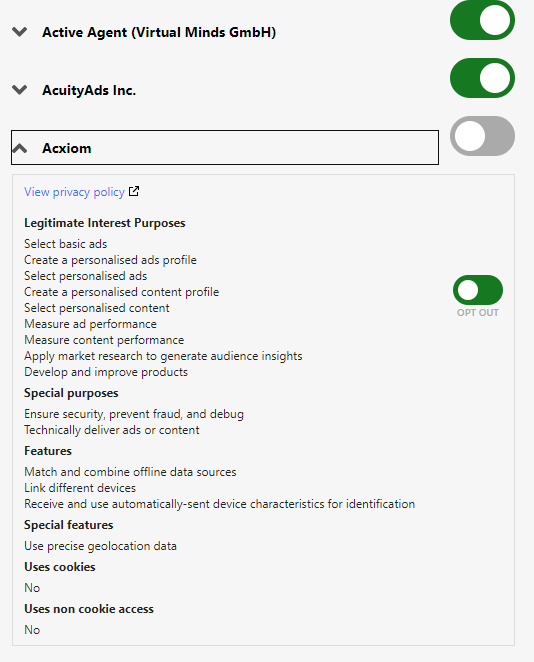
Here is an example where the general consent isn’t toggled on, but the legitimate interest purpose is, after users accept all.
Country-specific design requirements
Local laws and guidelines may differ from IAB requirements for your consent popup’s appearance and wording. You may need to adjust this guidance based on your specific needs.
If you need help deciding how your consent popup should look, contact us at support@cookieinformation.com.


