
The small icon in the corner is a consent widget that allows site visitors to reopen the consent popup to adjust their preferences easily. To remove it from your website, just turn it off, and the icon will disappear. In this article, we’ll show you how to do it.
Before you start
Here are a few things to know before you start:
- The consent widget, the icon , is a feature that allows users to reopen the cookie consent popup on your website after they have initially made their choices. This widget works by default in Cookie Information Consent Management Platform.
Turn off the consent widget
To turn off the consent widget, follow these steps:
- Log in to Cookie Information.
- In Consent Solutions, findthe consent solution you want to turn off the consent widget.

- Go to Consent popup > My templates.
- Find the consent template you want to remove the widget from.
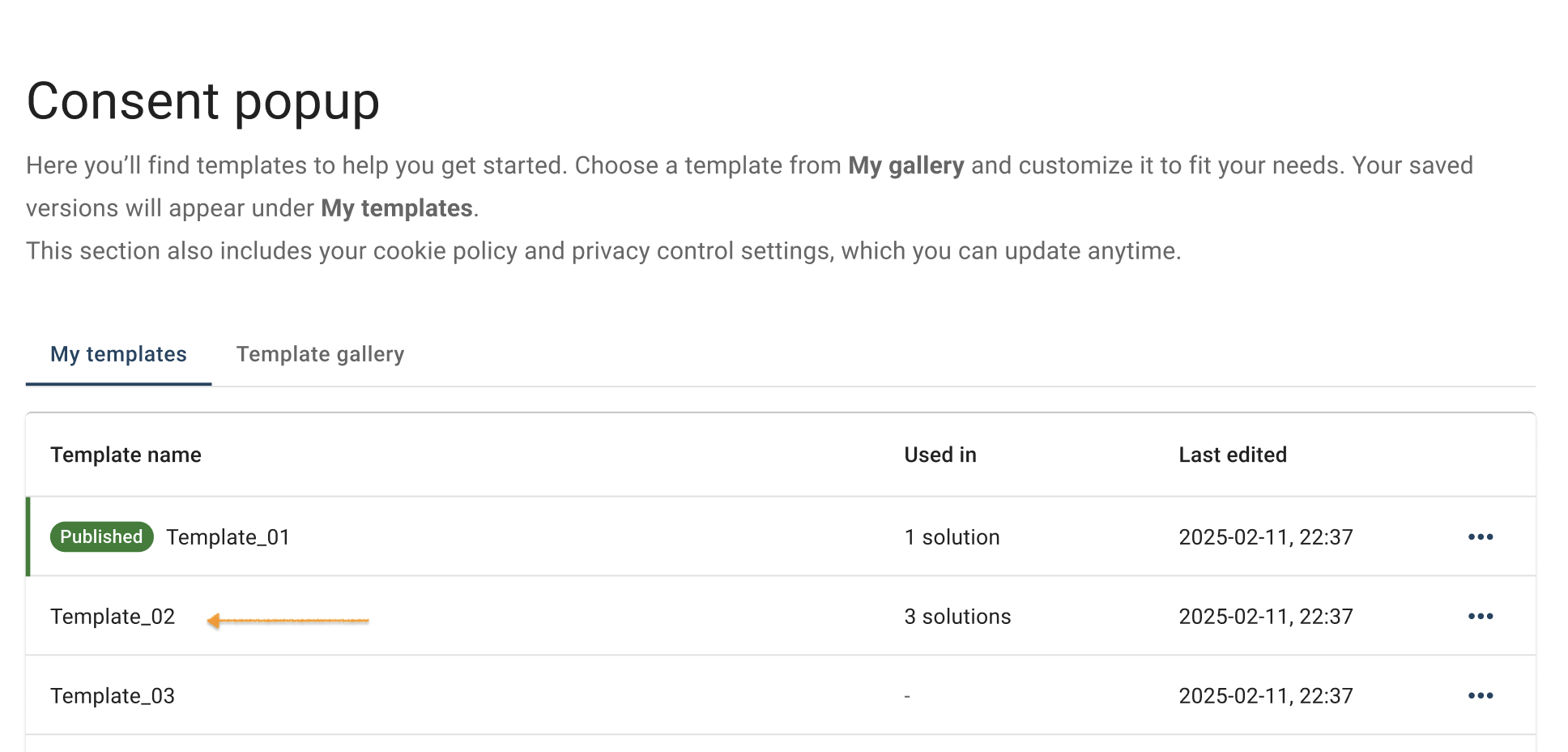
- Click the ⋯ three-doticon next to the template name you want to change, then click Edit.
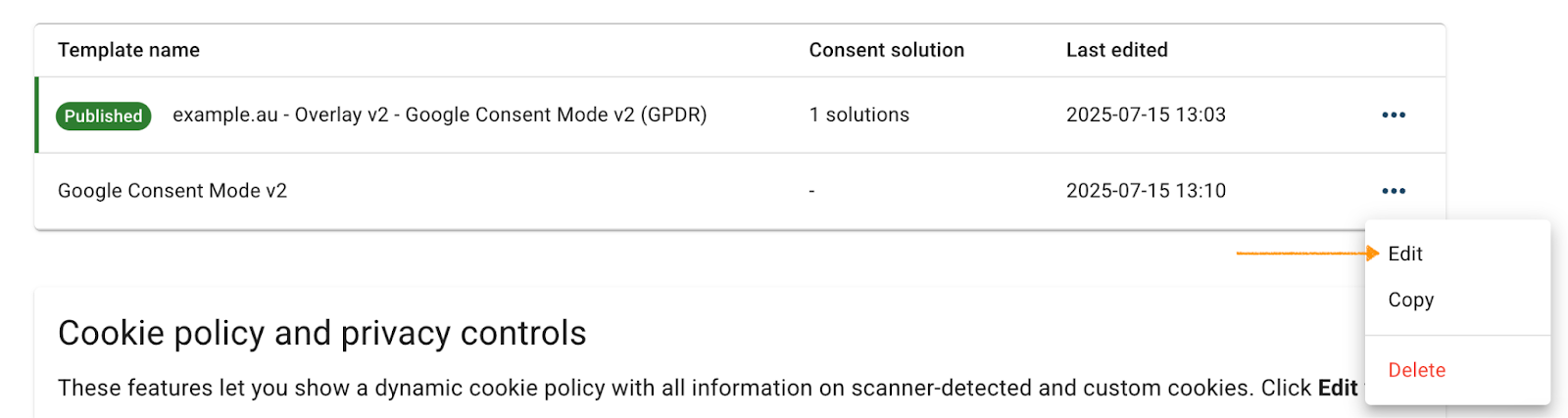
Note: The Published label shows which template is currently active for your consent popup:

- In Template code, go toJavaScript.
- Find the following code line:
renewBtn.style.display = 'block';
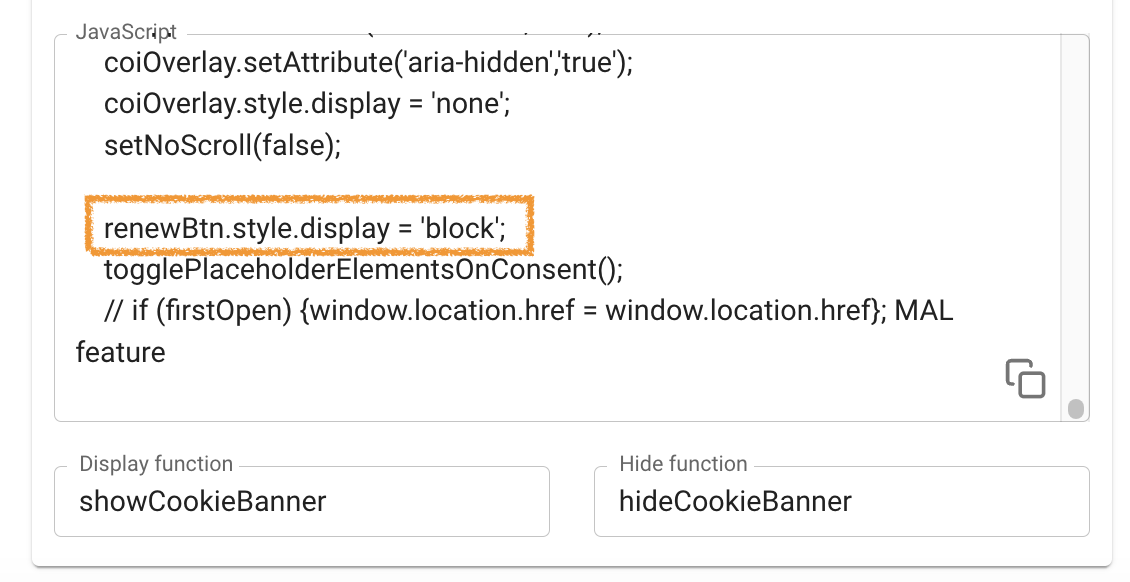
- In the code, change
'block'to'none'.
Note: If you want to turn on the consent widget, change this line to 'block'.
- Click Save
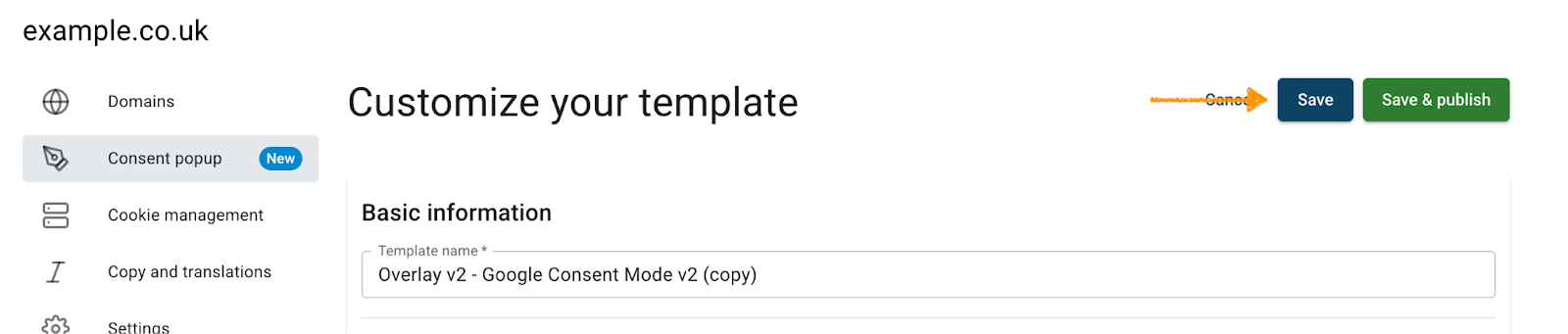
Note: Clicking Save only saves changes to your template. To publish the updated template, click Save and publish.
- Done. You removed the consent widget from your website.


