
If you have received an audit with feedback on how to improve your compliance, we recommend that you take a look through this article for advice on what actions to take moving forward.
- Missing information in the pop-up banner
- How to check if cookies are set before consent
- Classifying unclassified cookies
- Other things to consider
Missing information in the pop-up banner
Our standard pop-up text covers the use of third-party vendors. If you have already or wish to make changes to this text, we would advise consulting a legal advisor to ensure compliance with local regulations.
In order to make changes to the pop-up text, you can head to the platform, into your consent solution and to the pop-up tab. The text can be changed under the “Pop-up Text” section, as shown below.
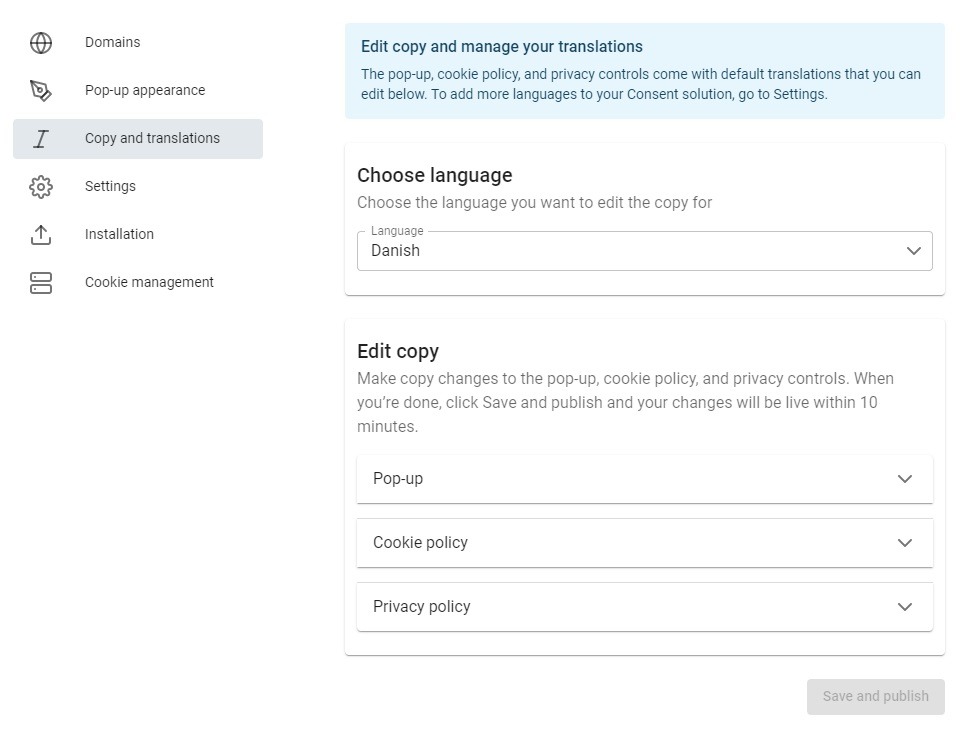
Here you can find all of our default policy texts and pop-up translations.
How to check if cookies are set before consent
It is not allowed to set any non-necessary cookies before consent. All other cookies should be blocked before a visitor interacts with the pop-up. At Cookie Information, we resolve this with the first-party cookies autoblocking feature and the Cookie Control SDK third-party cookies blocking.
Here is a step-by-step guide for the Google Chrome browser, followed by a video on checking if you allow cookies before consent.
- Open an incognito window by clicking on the three vertical dots in the top right corner of your Google Chrome browser and click “New incognito window”. Make sure to have Block third-party cookies set as “off”.
- Go to the website you want to test.
- Click the lock pad in the top right corner and see the number of cookies set before giving any consent.
- Accept all cookies.
- Click on the lock pad in the top right corner again. If the number of cookies set has increased by more than one, this means you have implemented a solution correctly.
If you have cookies that are set before consent, you can check out the following guides to determine how you can ensure cookies are being blocked until consent has been given.
Depending on the type of cookie and how it is set, please follow the relevant guide below:
- Cookie Autoblocking (First Party Cookies)
- Third-party cookie blocking
- GTM Implementation
Classifying unclassified cookies
To reach compliance according to GDPR, it is mandatory to classify all your cookies and make this a routine part of your recurring website maintenance.
Our compliance dashboard is a helpful tool which can enable you to gather an overall view of which domains have unclassified cookies.
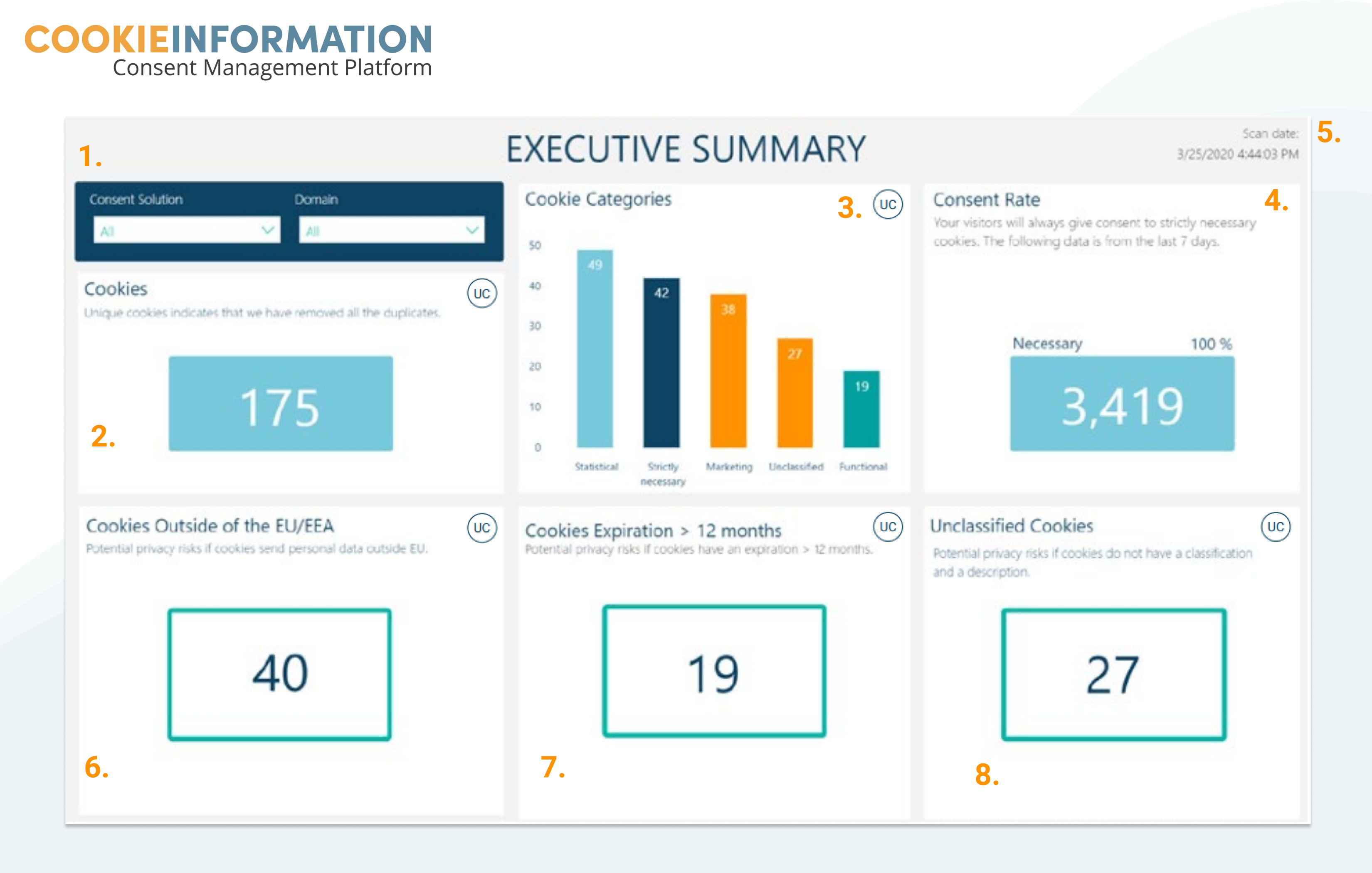
If you have unclassified cookies in your pop-up banner, you can move them into different categories in our “Cookie Management” section of your consent solution. You can also edit the purpose, description, data processor or other fields here.
We have a selection of guides which contain more information on how to use the Cookie Management section:
- Add a custom cookie
- Change a cookie category
- Add a data processor
- Choose a data processor
- Add a purpose while classifying a cookie
Other things to consider:
- Our default pop-up template is “Overlay v2 – Google Consent Mode v2” as this is the most up-to-date in regard to the guidelines set by the Danish DPA (Datatilsynet). We recommend that you update to the latest version of the template you are using.
- Use this guide to check whether or not you are compliant and make this part of your recurring website maintenance.
If you have any questions regarding this guide or anything you have seen here in the Support Centre, please do not hesitate to reach out to our support team at support@cookieinformation.com


