
In Cookie Information, you can assign a specific purpose (previously called Cookie description) to each cookie, such as functional, statistical, or marketing. You can also provide translations for these purposes so they appear in all language versions of your popup. In this article, we’ll show you how to do it.
Before you start
Here are some important things to keep in mind before you start:
- If a language is missing from the list, you can add it in Settings > Consent solution name and languages > Languages.
Add a purpose while classifying a cookie
To add a purpose while classifying a cookie, follow these steps:
1. Log in to Cookie Information.
2. Go to Consent solutions.
3. Find the consent solution where you want to add a cookie purpose.
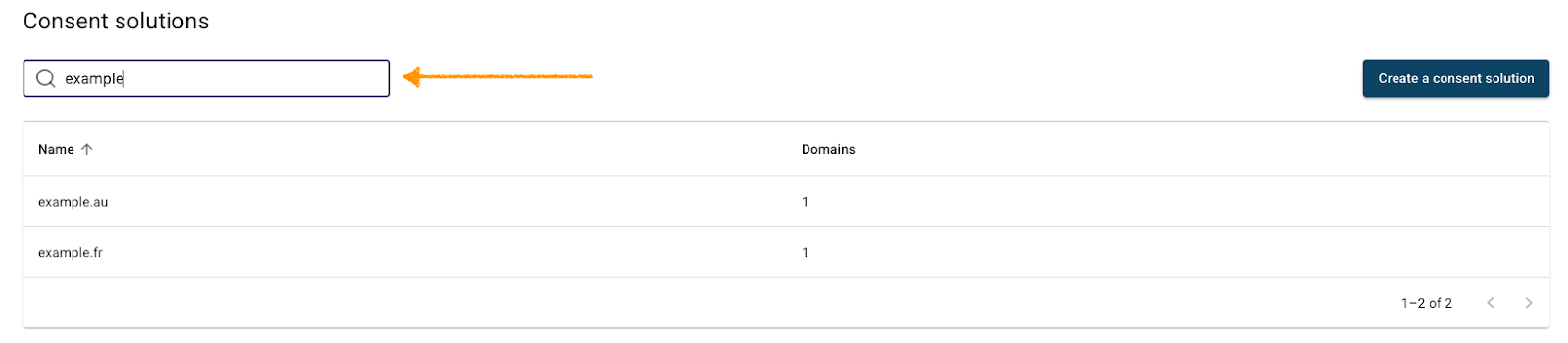
4. Navigate to Cookie management.
5. Find the cookie to add its purpose.
6. Click the ⋯ three-dot icon next to the cookie name, then click Edit.
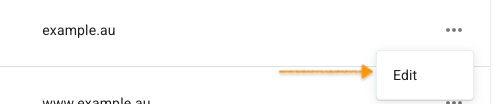
7. Under Purpose, enter a short description for each cookie purpose, for example: “Functional: remembers user settings” or “Marketing: tracks ad performance” in every language version of your website.
Note: If a language is missing from the list, you can add it in Settings > Consent solution name and languages > Languages.
8. Click Save.
9. All set.


