
When our scanner picks up an unclassified cookie due to some scanner limitations, you need to categorize this cookie and choose its data processor.
In this article, we’ll show you how to do it.
Before you start
Here are some important things to keep in mind before you start:
- You must add a data processor to save the cookie classification.
- You need to include a data processor to inform users about who handles their data and to gather their consent. For first-party cookies, this is typically your website. For third-party cookies, it’s typically a company that offers a service, such as ads, and sets this cookie on your website.
Choose a data processor
To choose a data processor, follow these steps:
1. Log in to Cookie Information.
2. Go to Consent solutions.
3. Find the consent solution with an unclassified cookie.
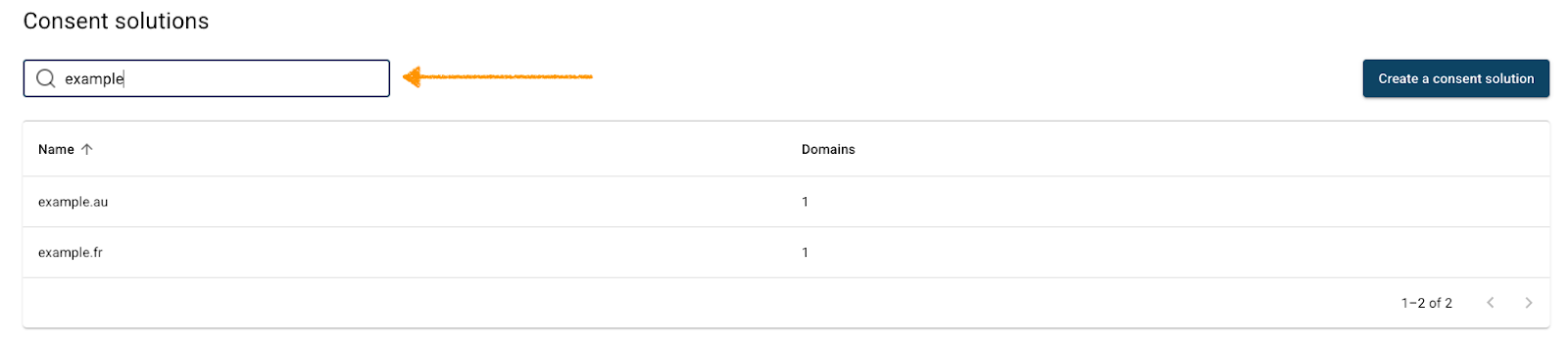
4. Navigate to Cookie management.
5. Find the unclassified cookie.
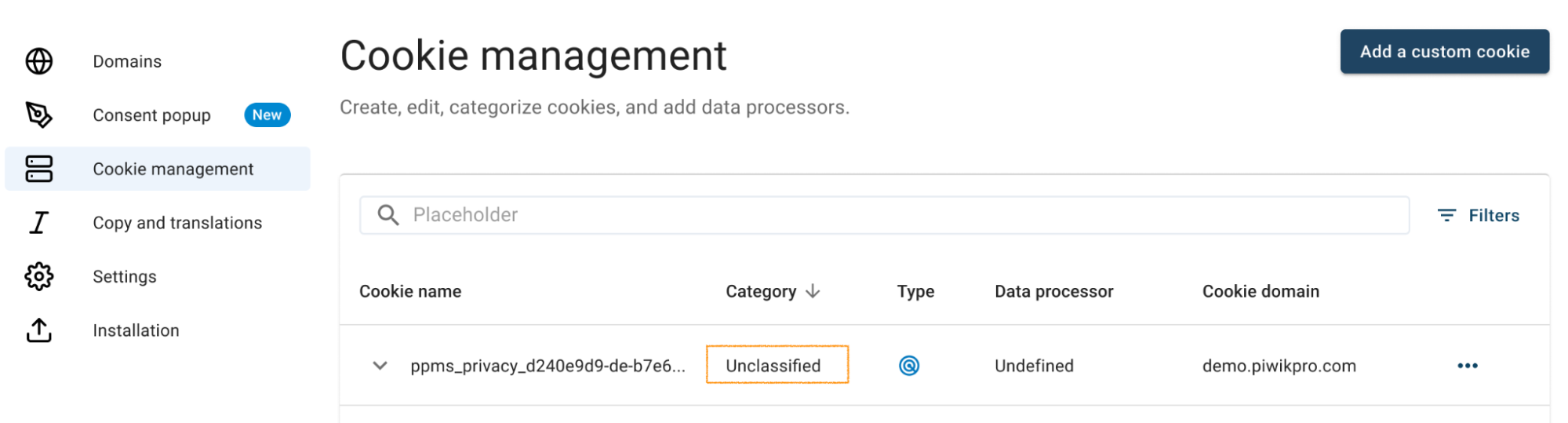
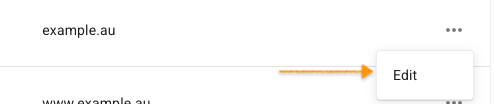
6. Click the ⋯ three-dot icon next to the cookie name, then click Edit.
7. In Data processor, choose from the list a data processor you want to set.
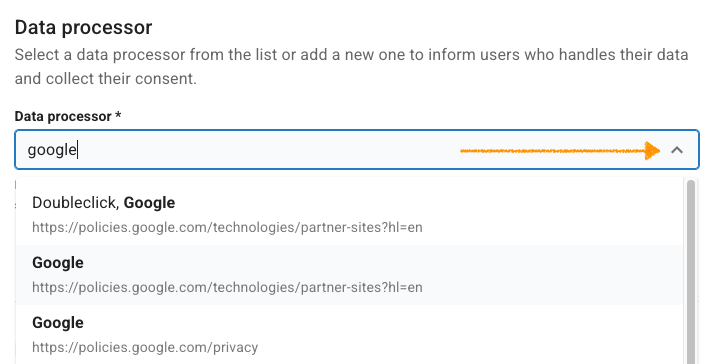
Note: You need to include a data processor to inform users about who handles their data and to gather their consent. For first-party cvookies, this is typically your website. For third-party cookies, it’s typically a company that offers a service, such as ads, and sets this cookie on your website.
8. If a data processor is missing from that list, you need to add it. Read more about how to do it.
9. Click Save.
10. All set.


