
On-demand scanning lets you scan a domain for cookies between scheduled scans. It’s useful after you make changes to your website or add new cookies and don’t want to wait for the next scheduled scan.
In this article, we’ll show you how to use an on-demand scan.
Before you start
Here are a few things to know before you start:
- On-demand cookie scanning works per domain. You can scan your domain three times a day. It resets at midnight.
- Scheduled and on-demand scans work independently.
- Save any changes to the domain settings before you start a scan.
- After the scan is complete, any new cookies found will be added to your consent popup.
Scan your domain on demand
To scan your website on demand, follow these steps:
1. Log in to Cookie Information.
2. In Consent solutions, find the consent solution with the domain you want to scan.
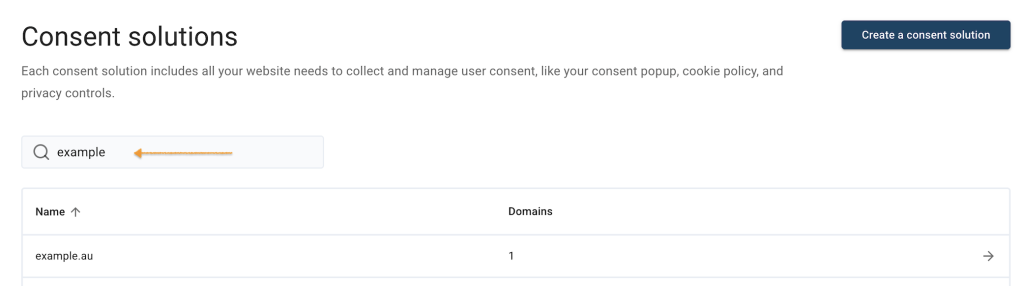
3. Open the consent solution.
4. In Domains, find the domain you want to scan, then click the settings icon.
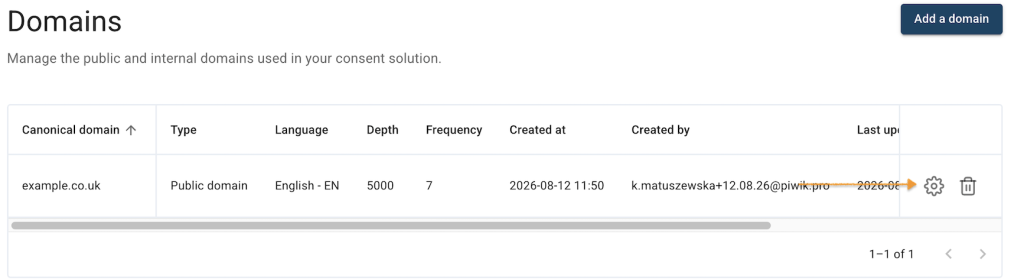
5. Go to Scanner settings.
6. Click Scan now.
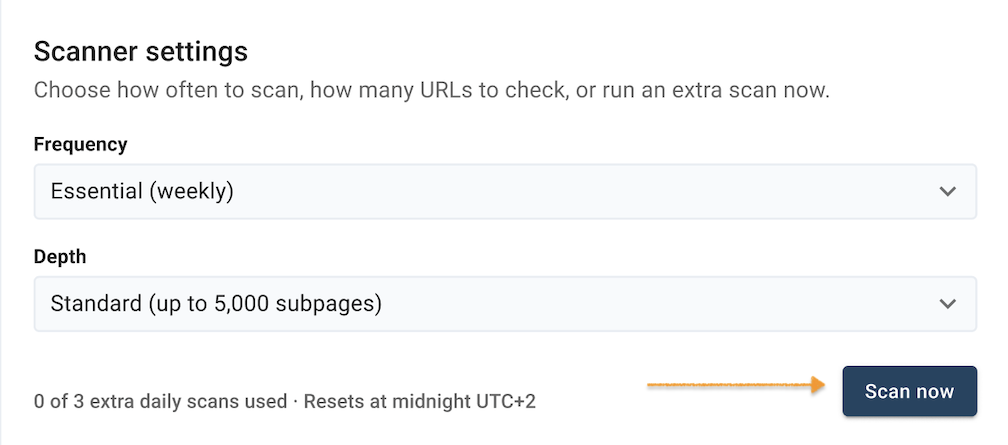
Note: The scan can take a few hours. While it runs, you’ll see Scan in progress.
7. When the scan is complete, you’ll see the completion status and the number of cookies found. You can review the detected cookies in Cookie management.

8. Done. You’ve scanned your domain.


