
If you are experiencing issues with the scanner not detecting cookies or showing results for your domain, there are several potential causes and solutions to consider.
In this article, we’ll show you what to check when the scanner doesn’t detect cookies or doesn’t show results for your domain.
Before you start
Here are a few things to know before you start:
- If the scanner doesn’t detect cookies, the issue is usually caused by one of these things:
- Your domain is set up as an internal test domain.
- Your firewall or security tools are blocking the scanner.
- The scanner can only access a limited part of your site, so it detects only necessary cookies or very few cookies.
- You can’t change the type of the existing domain. Public domains are included in your subscription plan limits and incur charges, while test domains are excluded from limits and charges.
| Domain type | Scanned | Shown in the popup | Can collect consent |
|---|---|---|---|
| Public domain | ✔ | ✔ | ✔ |
| Public test domain | ✖ | ✔ | ✔ |
| Internal test domain | ✖ | ✖ | ✖ |
Check your domain type
Internal test and public test domains aren’t scanned. They’re meant for testing your implementation and popup design.
To check your domain type, follow these steps:
- Log in to Cookie Information.
- Find the consent solution where you want to check the domain.
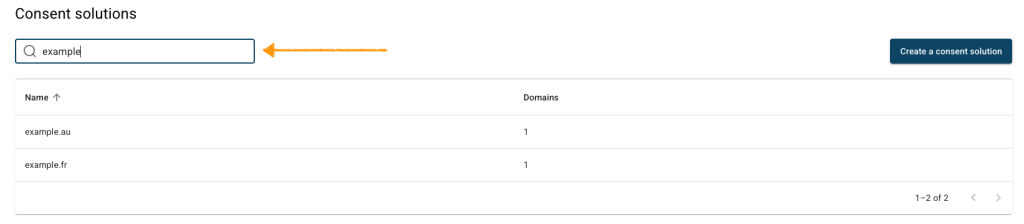
- In Domains, find the domain.
- In Type, check whether the domain is a public test or a public domain.
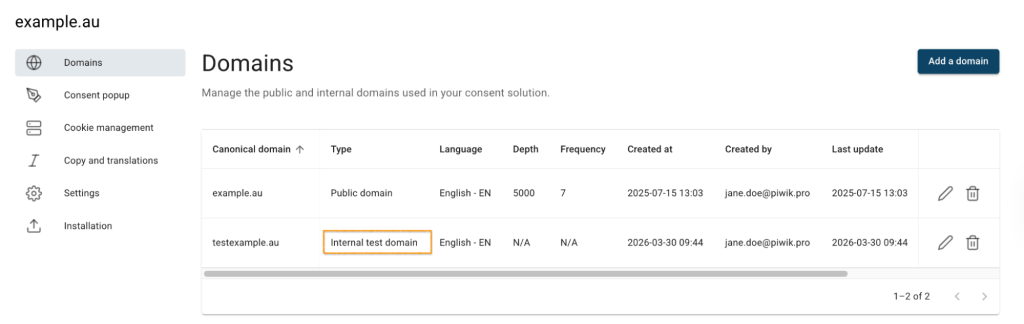
- Since the domain
testexample.auis an internal test domain, it can’t be scanned. - Done.
Check whether security tools are blocking the scanner
If the scanner detects only necessary cookies or only a small number of cookies, your site may be blocking access.
Check whether any of these are blocking the scanner:
- A firewall
- Bot protection
- Other security tools or access rules
To give the scanner full access, whitelist its IP address and user agent. The scanner’s IP address is 9.163.239.45, and the user agent is CookieInformationScanner.


