
Use the Cookie Information React Native SDK to show a consent popup in your app and store the user’s consent choices.
Native SDKs
Before you start
Make sure you have:
- A Cookie Information account and your SDK credentials (client ID, client secret, and solution ID).
- The languages you want to use are set up in the Cookie Information platform.
- The SDK uses the languageCode you pass during initialization for all UI components and ignores the system language.
- If you don’t set languageCode, the SDK uses the device locale.
- Make sure the selected language is set up in the platform and has content.
Install the SDK
npm install @cookieinformation/react-native-sdk
# or
yarn add @cookieinformation/react-native-sdk
Quick start
Recommended flow: Initialize the SDK once, then call showPrivacyPopUpIfNeeded when needed (typically on app start).
Initialize the SDK
Initialize the SDK before calling any other method. You can initialize with or without UI customization. SDK credentials can be fetched from the Cookie Information.
Note:
- The SDK uses the
languageCodeyou pass during initialization for all UI components and ignores the system language. - If you don’t set
languageCode, the SDK uses the device locale. - Make sure the selected language is set up in the platform and has content.
Minimum required data for initialization:
clientIdclientSecretsolutionId
import MobileConsent from '@cookieinformation/react-native-sdk';

await MobileConsent.initialize({
  clientId: 'YOUR_CLIENT_ID',
  clientSecret: 'YOUR_CLIENT_SECRET',
  solutionId: 'YOUR_SOLUTION_ID',
});
An example of all SDK arguments and data:
await MobileConsent.initialize({
  clientId: 'YOUR_CLIENT_ID',
  clientSecret: 'YOUR_CLIENT_SECRET',
  solutionId: 'YOUR_SOLUTION_ID',
  languageCode: 'EN',        // optional
  enableNetworkLogger: false, // iOS only
  ui: {
    ios: {
      accentColor: '#2E5BFF',
      fontSet: {
        largeTitle: { size: 34, weight: 'bold' },
        body: { size: 14, weight: 'regular' },
        bold: { size: 14, weight: 'bold' },
      },
    },
    android: {
      lightColorScheme: {
        primary: '#FF0000',
        secondary: '#FFFF00',
        tertiary: '#FFC0CB',
      },
      darkColorScheme: {
        primary: '#00FF00',
        secondary: '#008000',
        tertiary: '#000000',
      },
      typography: {
        bodyMedium: { font: 'inter_regular', size: 14 },
      },
    },
  },
});Notes:
- Android font is a resource name under
android/app/src/main/res/font. - Colors accept
#RRGGBBor#AARRGGBB. - On iOS, the SDK uses system fonts if the
nameis omitted.
Show the consent popup
The SDK includes built-in screens for managing consent.
An example of the default consent popup on iOS and Android:
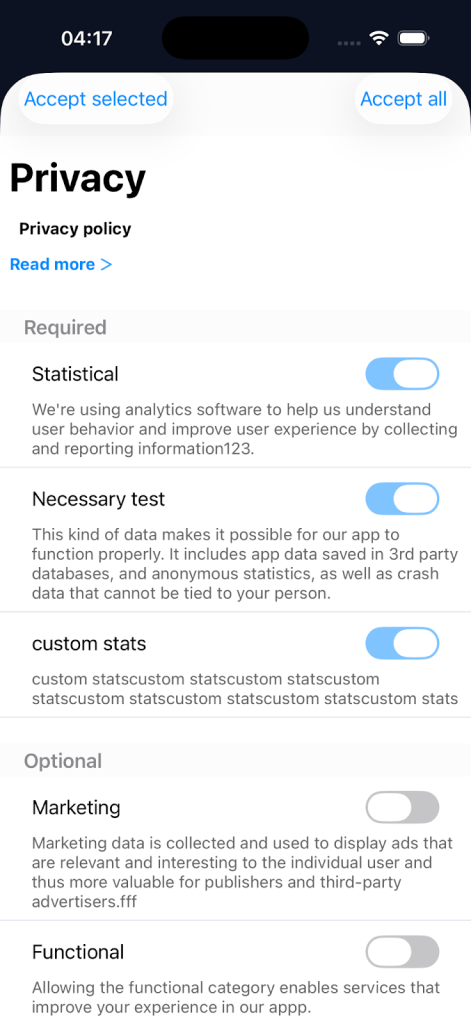
Always show the consent popup
Use showPrivacyPopUp() to show the consent popup at any time (for example, from your app settings).
showPrivacyPopUp(): Promise<TrackingConsents>The function resolves with the user’s selections as a key–value map of consent categories to booleans. Use the result to enable or disable third-party SDKs based on consent.
const consents = await MobileConsent.showPrivacyPopUp();

// Return type: TrackingConsents (Record<string, boolean | undefined>)
// TrackingConsents is a map of consent choices keyed by purpose/category:
// - keys: necessary, functional, statistical, marketing, custom (plus any custom keys)
// - values: boolean (true/false) or undefined
// Example return shape:
// {
//   necessary: true,
//   functional: false,
//   statistical: true,
//   marketing: false,
//   custom: true
// }

if (consents.marketing) {
  // enable marketing SDKs
} else {
  // disable marketing SDKs
}
Show the consent popup conditionally
Use showPrivacyPopUpIfNeeded() at app start (or another point you choose). It checks:
- Whether consent is already stored on the device.
- Whether the consent version has changed on the server.
If consent is missing or outdated, the popup is shown. Otherwise, the method resolves immediately with the current consent data.
On iOS, set ignoreVersionChanges to ignore consent version changes from the server.
showPrivacyPopUpIfNeeded(
  options?: { ignoreVersionChanges?: boolean; userId?: string | null }
): Promise<TrackingConsents>
const consents = await MobileConsent.showPrivacyPopUpIfNeeded();
// Use the result to enable/disable SDKs
if (consents.marketing) {
// enable marketing SDKs
} else {
// disable marketing SDKs
}With optional parameters (Android userId, iOS ignoreVersionChanges):
const consents = await MobileConsent.showPrivacyPopUpIfNeeded({
  ignoreVersionChanges: true, // iOS only
  userId: 'user_123', // optional on Android
});

// Example: read custom keys or localized titles
if (consents['Age Consent']) {
  // handle custom consent item
}
Handle errors
Both showPrivacyPopUp and showPrivacyPopUpIfNeeded handle errors. If an error happens, the user’s choice is still saved on the device, and the SDK will try again the next time you call showPrivacyPopUpIfNeeded() or synchronizeIfNeeded().
try {
  await MobileConsent.showPrivacyPopUpIfNeeded();
} catch (e) {
  console.warn('Consent UI failed, retry later:', e);
  // You can call showPrivacyPopUpIfNeeded() again later (e.g., next app start).
}
Build your own consent UI (custom view)
If the built-in UI doesn’t fit your app, you can build your own view. Use the methods below to fetch the consent solution and save the user’s choices.
All methods return Promises and must be called after initialize().
Initialize
Initialize the native SDKs before calling any other method.
initialize(options: InitializeOptions): Promise<void>cacheConsentSolution
It fetches the latest consent solution from the server.
On iOS, cacheConsentSolution() also returns consentSolutionVersionId, which you must pass to saveConsents() when saving consents manually. Use consentItems to build a custom UI if needed.
cacheConsentSolution(): Promise<{ consentItems: ConsentItem[]; consentSolutionVersionId?: string }>const { consentItems, consentSolutionVersionId } =
await MobileConsent.cacheConsentSolution();
// Example usage: build your own UI from consentItems
const itemsForUi = consentItems.map((item) => ({
id: item.id,
title: item.title,
required: item.required,
accepted: item.accepted,
}));saveConsents
Submits the selected consent items to the server and stores them locally on the device.
- iOS: You must pass
consentSolutionVersionIdfromcacheConsentSolution(or a known version ID). - Android:
consentSolutionVersionIdis ignored.
Parameters
consentItems(required): List of consent items to save.customData(optional): Custom data to attach (for example,email,device_id).userId(Android only, optional): User ID. Omit or passnullfor anonymous users. Ignored on iOS.consentSolutionVersionId(iOS only, optional): Overrides the version ID when you already have one.
saveConsents(
  consentItems: ConsentItem[],
  customData?: Record<string, string> | null,
  userId?: string | null,
  consentSolutionVersionId?: string | null
): Promise<SaveConsentsResponse>
const { consentItems, consentSolutionVersionId } =
await MobileConsent.cacheConsentSolution();
await MobileConsent.saveConsents(
consentItems,
{ device_id: 'example-device' },
'user_123', // optional userId on Android
consentSolutionVersionId
);Notes:
- On iOS,
consentSolutionVersionIdis required (get it fromcacheConsentSolution()or pass a known version). - On Android,
consentSolutionVersionIdis ignored. userIdis optional on Android. Passnullor omit it for anonymous users.
getSavedConsents
Returns consent items stored on the device.
- Android: Returns items from the local database (cached consentsolution + user choices). Items may exist after
cacheConsentSolution, even before the user makes any choices. - iOS: Returns only consents saved when the user submits choices (for example, through the consent dialog or
saveConsents()). The result is empty until the user completes the flow at least once.
Parameters
userId(Android only, optional) user ID. Omit or passnullfor anonymous users. Ignored on iOS.
getSavedConsents(userId?: string | null): Promise<{ consentItems: ConsentItem[] }>const { consentItems } = await MobileConsent.getSavedConsents();
// Return type: { consentItems: ConsentItem[] }acceptAllConsents
Fetches the consent solution and saves an “accept all” choice.
Parameters
userId(Android only, optional): user ID. Omit or passnullfor anonymous users. Ignored on iOS.
acceptAllConsents(userId?: string | null): Promise<AcceptAllConsentsResponse>removeStoredConsents
Deletes stored consents on the device (doesn’t delete server data).
Parameters
userId(Android only, optional): User ID. Omit or passnullfor anonymous users. Ignored on iOS.
removeStoredConsents(userId?: string | null): Promise<void>synchronizeIfNeeded
Retries failed consent uploads.
synchronizeIfNeeded(): Promise<void>Types (summary)
type TrackingConsents = Record<string, boolean | undefined>;

interface ConsentItem {
  id: number;
  universalId: string;
  title: string;
  description: string;
  required: boolean;
  type: string;
  accepted: boolean;
}

interface SaveConsentsResponse {
  success: true;
  savedCount: number;
}
Logging (iOS)
Enable network logging on iOS via enableNetworkLogger: true in initialize().
Run the example app
The example app is in example/ and requires a native build (Expo Go is not supported).
# from repo root
npm install
cd example
npm install

# generate native projects (first time or after native changes)
npx expo prebuild --clean

# run on device/simulator
npx expo run:ios
# or
npx expo run:android
Notes:
- Update the credentials in
example/App.tsxbefore running. - Call
initialize()before any other method.


