
If you’re a reseller partner, you’ll receive a 20% discount code to use when creating your subscription. Your discount code should have been included in your onboarding email which you received when you created an account.
Apply your discount code
To apply your discount code, follow these steps:
1. In Cookie Information, click Subscribe.
2. In Subscription, select Business.
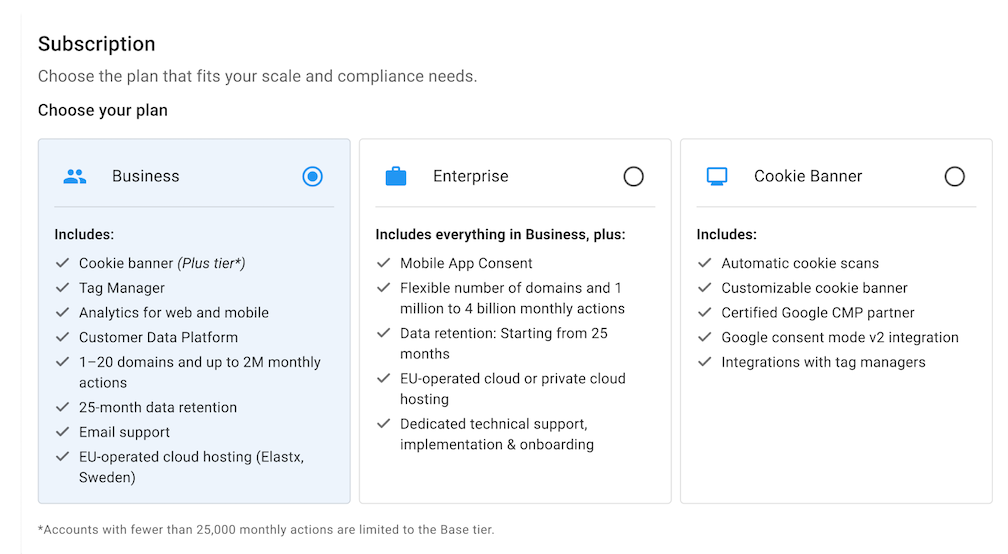
3. Go to Plan details > Customize domains and tracking.
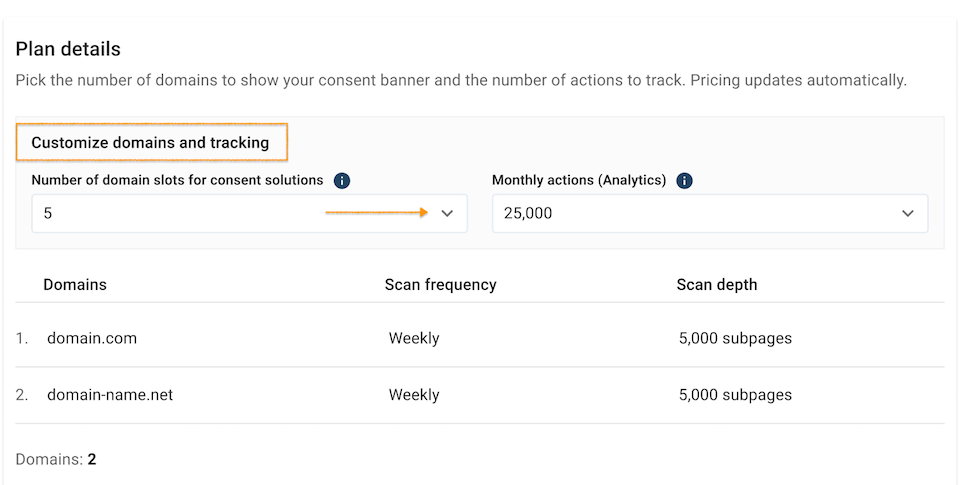
4. In Number of domain slots for consent solutions, choose how many websites you want to display the consent popup on.
5. In Monthly actions (Analytics), choose how many actions you want to track.
Note: In the Analytics module, an action is any tracked activity by visitors or the platform on your website or app. Examples include:
- Page views
- Downloads
- Clicks
- Site searches
- Event or goal triggers
- API requests
Each action counts toward your monthly limit.
6. In Subscription summary, click Continue to billing.
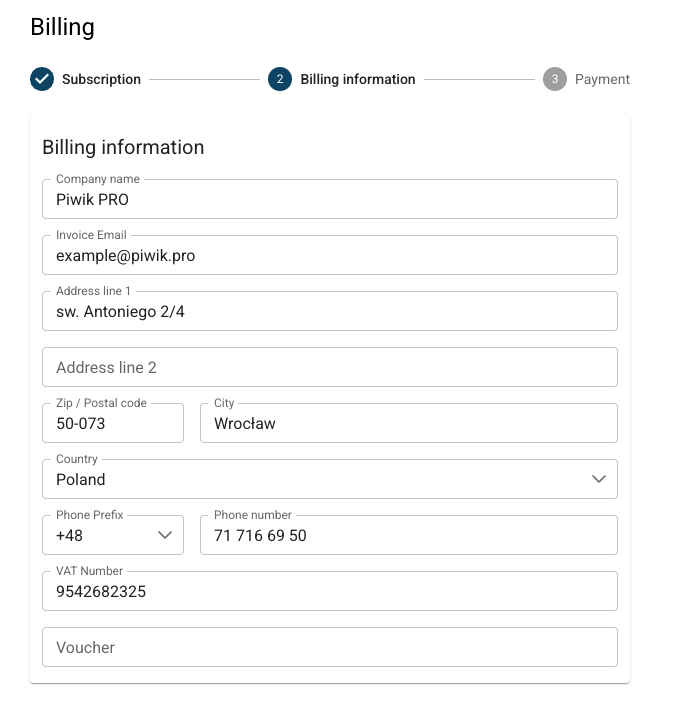
7. In Billing information, fill out the form.
Note:
- The voucher field is optional. Discount codes are case-sensitive, so make sure you enter the code exactly as you received it.
- The discount voucher is only valid for your account and can’t be shared with end clients.
8. In the voucher field, enter your discount code.
9. Click Continue to payment.
10. Complete your payment in Stripe. After your payment is processed, you’ll be redirected back to Cookie Information.
Note: If you haven’t received your discount code or the discount code isn’t working, please reach out to us at support@cookieinformation.com. We will be able to help you apply the discount to your subscription.


