
A domain is the unique name or address of a website on the internet, like example.com. It’s what users type into their browser’s address bar to visit a website.
In this article, we’ll show you how to add and edit a domain.
Before you start
Here are a few things to know before you start:
- You can add, edit, or delete domains. Each action can affect your Cookie Information setup and billing. Public test and internal test domains are free of charge.
- You can choose between public, public test, and internal test domain types. The type you select determines how the system will scan it, display it on the popup and if consent will be collected.
- You can’t change the type of the existing domain. Public domains are included in your subscription plan limits and incur charges, while test domains are excluded from limits and charges.
| Domain type | Scanned | Displayed on popup | Consent collected |
|---|---|---|---|
| Public domain | ✔ | ✔ | ✔ |
| Public test domain | ✖ | ✔ | ✔ |
| Internal test domain | ✖ | ✖ | ✖ |
Add a domain
To add a domain, follow these steps:
1. Go to Consent solutions.
2. Find the consent solution where you want to add the domain.
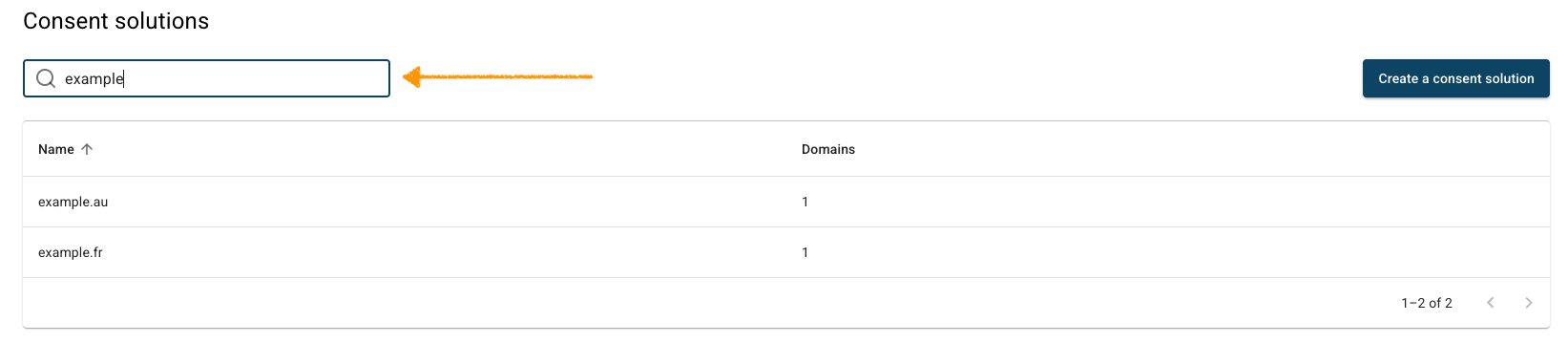
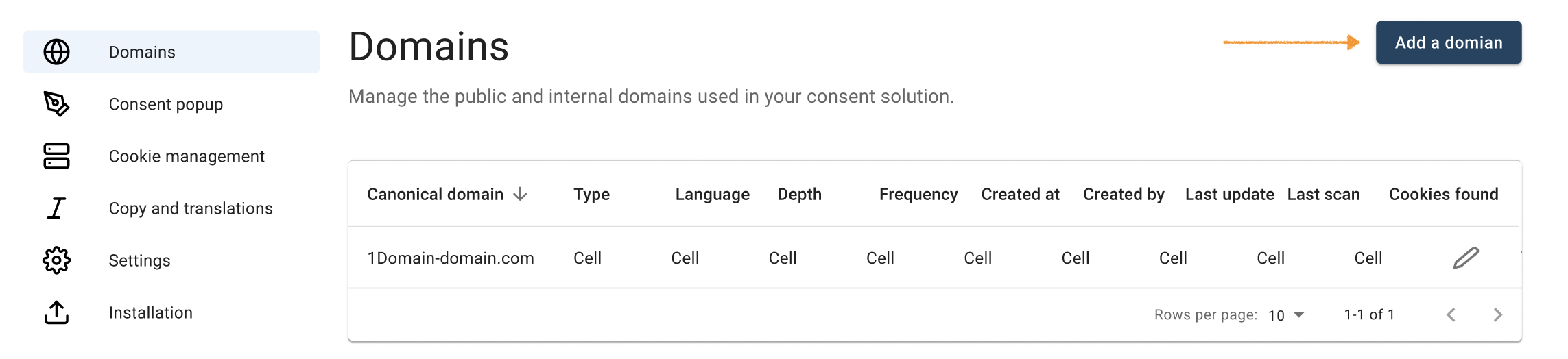
3. In Domains, click Add domain.
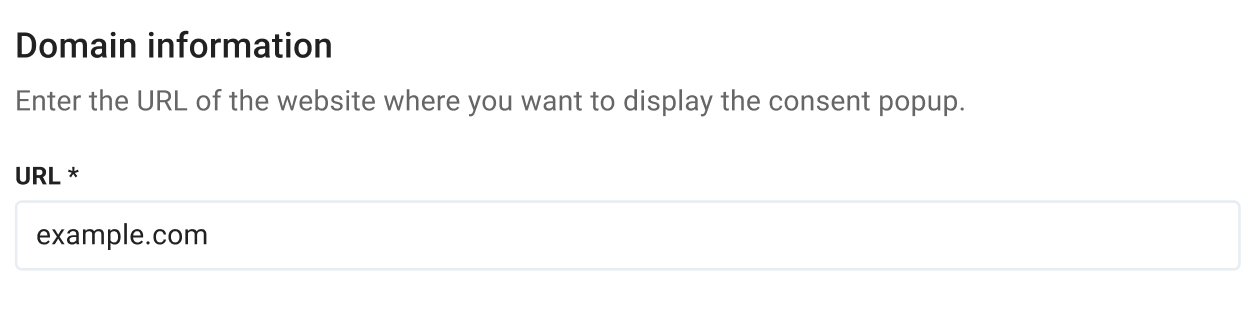
4. In Domain information, enter the website URL where you want the cookie banner displayed.
Note:
- In the Domain URL, you have to enter a root domain without http:// or www, for example,
test.cookieinformation.com. - To change the domain URL, remove the domain first, then add it again.
5. Choose the domain type: public, public test, or internal test domain.
Note: Once you set the domain type, you can’t change it later.
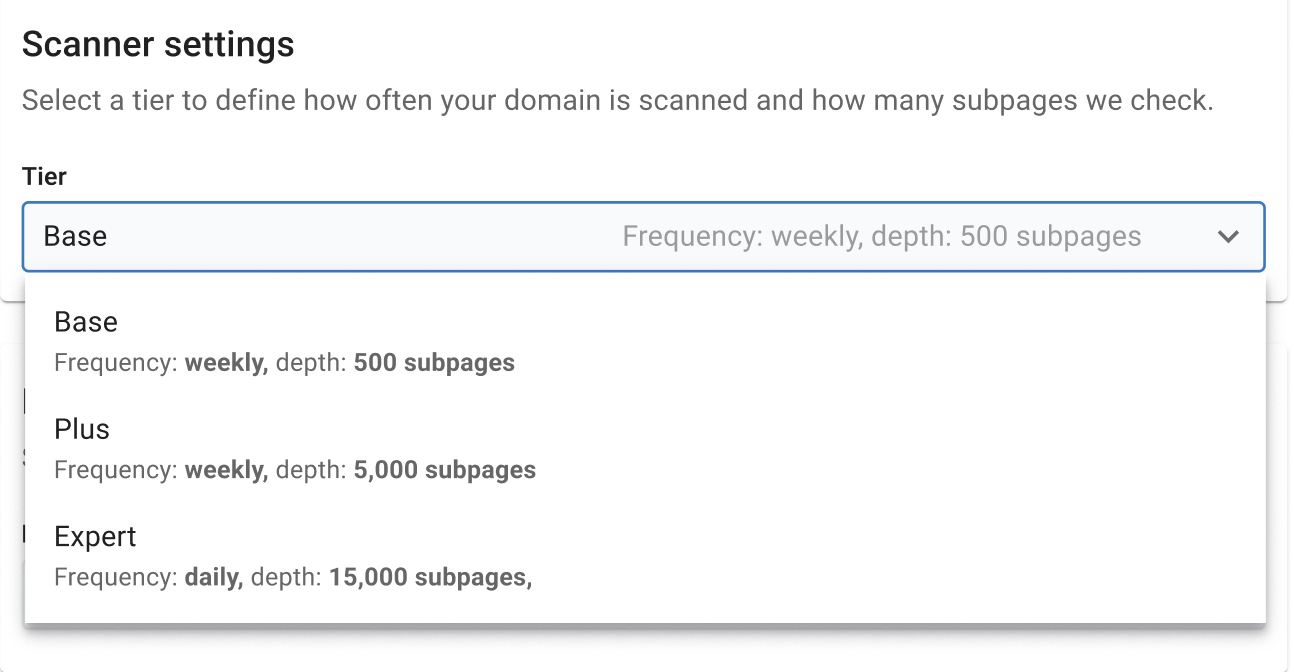
6. In Scanner settings, choose a tier to define how often to scan your domain and how many subpages you want to check. (Available only for public domains.)
Note:
- The Cookie Banner plan tier defines how often we scan your domain and. how many subpages the scanning includes.
- You can choose between the Base, Plus, and Expert plans. For more information, see our pricing.
- It’s possible to scan up to 500, 5,000, or over 15000 URLs. If you’re unsure how many subpages your site has, try a Google search using site:yourdomain.com to see the results.
- Domain-specific depth limits are applied individually to each domain, regardless of whether domains are part of the same or different consent solutions. If you have reached the maximum public domain limit in your plan, upgrading your subscription is necessary to add additional public domains.
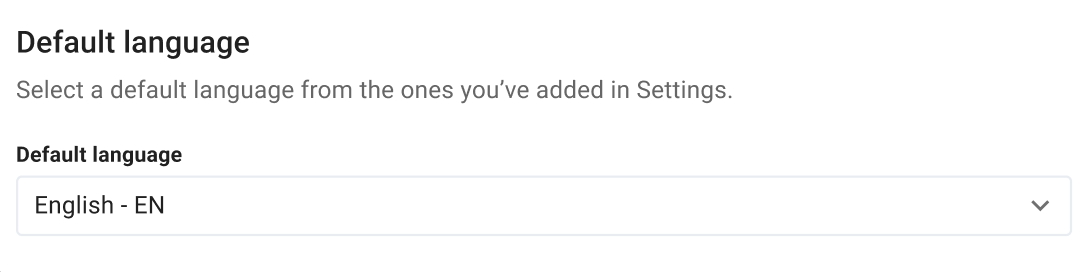
7. Select a default language from those you set in Settings.
8. Click Save.
9. Done.
Edit a domain
To edit a domain, follow these steps:
1. Go to Consent solutions.
2. Find the consent solution where you want to edit the domain.
3. Go to the domain you want to edit and click the pencil icon.
Note: You can’t change the type of the existing domain.
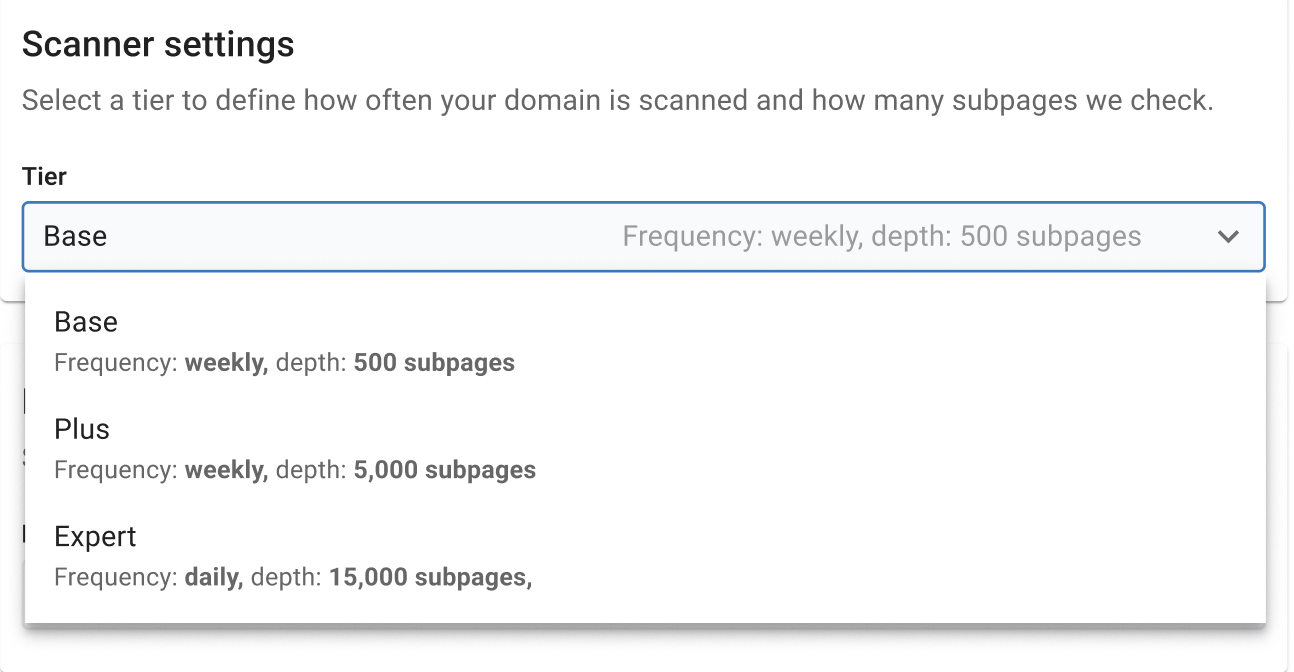
4. In Scanner settings, choose a tier to define how often to scan your domain and how many subpages you want to check. (Available only for public domains.)
Note:
- The Cookie Banner plan tier defines how often we scan your domain and how many subpages the scanning includes.
- You can choose between the Base, Plus, and Expert plans. For more information, see our pricing.
- It’s possible to scan up to 500, 5,000, or over 15000 URLs. If you’re unsure how many subpages your site has, try a Google search using site: yourdomain.com to see the results.
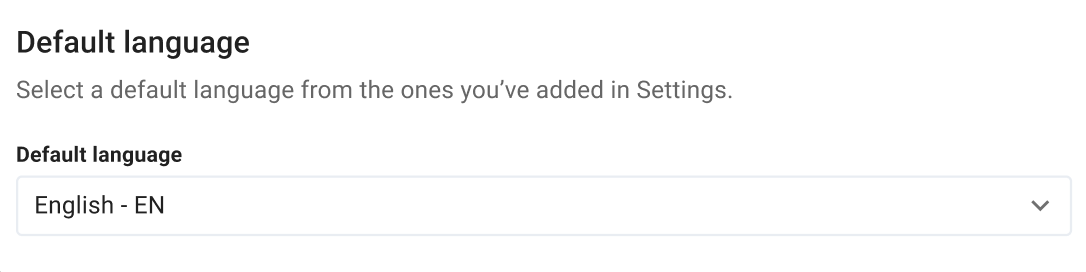
5. Select a default language from those you set in Settings.
6. Click Save.
7. Done.


